---
title: "Getting Started with the Packaging Application"
canonical: https://customerscanvas.com/docs/cc6/origami-sample.htm
archived: true
applies_to:
- product: "Customer's Canvas On-Premises"
- product: "Design Editor"
versions: ["6.15.0", "6.x (may differ)"]
---
**You’re viewing outdated documentation.** [View the latest Customer’s Canvas On-Premises documentation](https://customerscanvas.com/docs/on-premises/).
# Getting Started with the Packaging Application
**Applies to:** Customer's Canvas On-Premises; Design Editor 6.15.0, 6.x (may differ) · **Archived documentation**
This sample application demonstrates how you can use Customer's Canvas and Origami. The solution is distributed among two applications:
- Origami is in `OrigamiWeb.zip`.
- Customer's Canvas is in `CustomersCanvasIISBin.zip`.
After you have unzipped the `OrigamiWeb.zip` file, you can find the sample application in the `/example/` folder. This skeleton sample is for demonstration purposes only. You can modify the user interface of this application as well as configure the Customer's Canvas graphics editor.
This application demonstrates how you can implement the following basic operations:
- Loading a die-cut model and building a form with parameters.
- Selecting a style (the background) of graphics.
- Creating a 2D die-cut template and a 3D model based on the parameters provided.
- Editing graphics in the Design Editor.
- Displaying a 3D preview.
To run the Origami application, you need a working instance of Customer's Canvas. You can either use a cloud version on our servers or deploy an on-premises instance from the ZIP file.
## How to Set Up Customer's Canvas
To use Customer's Canvas on your site, perform the following key steps:
1. Link the editor's API on your webpage.
```html
```
2. Specify an iframe element.
```html
```
3. Define a configuration and [load the editor](https://customerscanvas.com/docs/cc6/customerscanvas.iframeapi.loadeditor.htm.md) into this iframe.
```
var cnv = document.querySelector("#cc_frame");
CustomersCanvas.IframeApi.loadEditor(cnv, conf_product, conf_editor)
.then(function (editor) {
...
```
4. When the graphics customization is finished, call the [finishProductDesign](https://customerscanvas.com/docs/cc6/customerscanvas.iframeapi.editor.finishproductdesign.htm.md) method to render hi-res output files.
```
editor.finishProductDesign({fileName: "design", proofMaxWidth: 1191, proofMaxHeight: 3373})
```
## How to Run the Application
First, define your settings of the Origami application in [web.config](https://customerscanvas.com/docs/cc6/origami-settings.htm.md).
```xml
...
```
After that, you can run Origami in the Visual Studio. When the editor opens, you can see the following page.
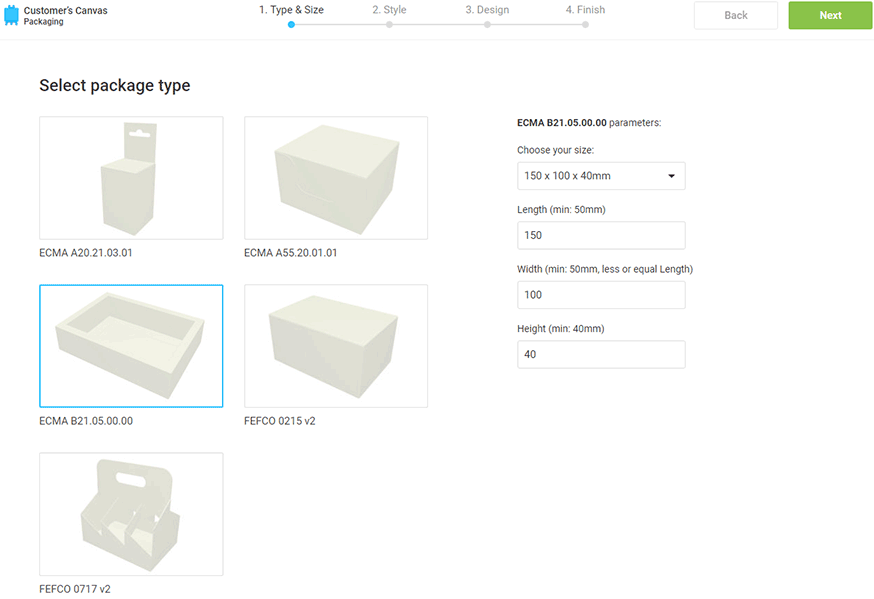
Here, you have to select a package type, then verify and edit the product parameters. Click **Next** to navigate to the next step to select a mockup.
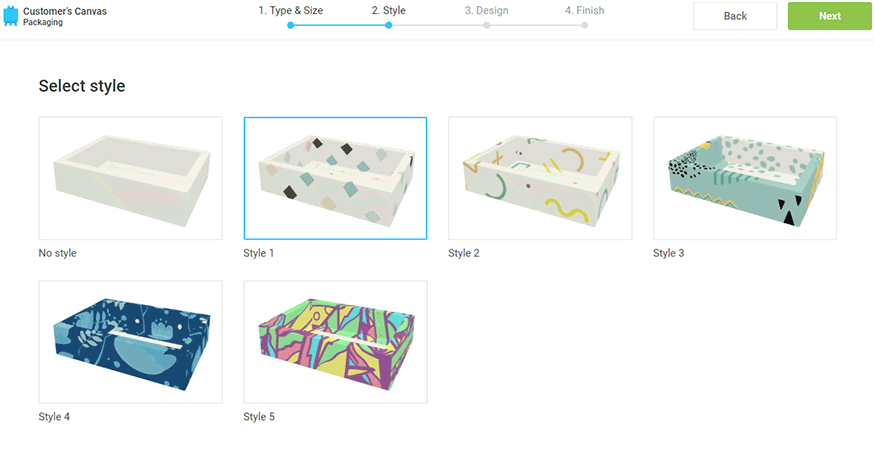
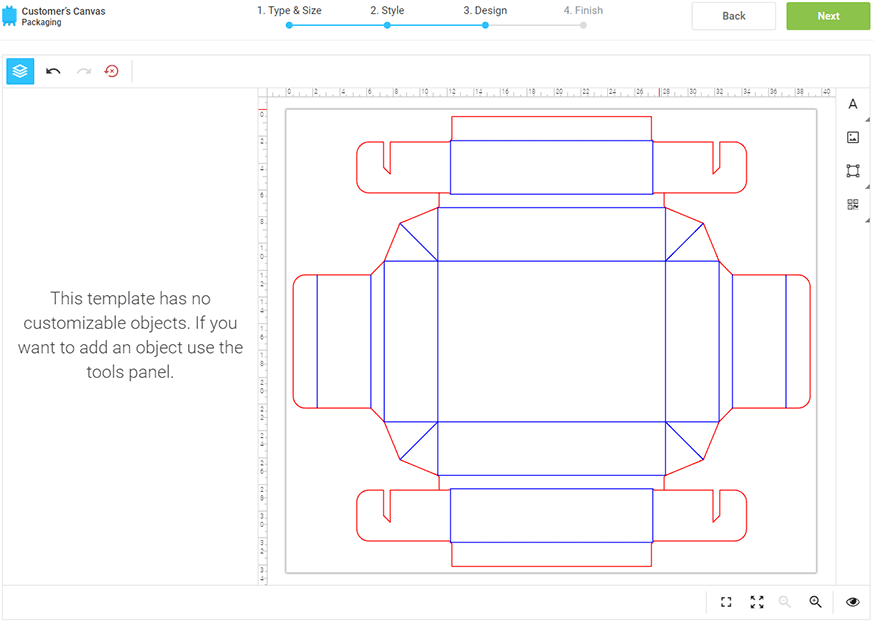
After you have selected a mockup, click **Next** to navigate to the design customization process.
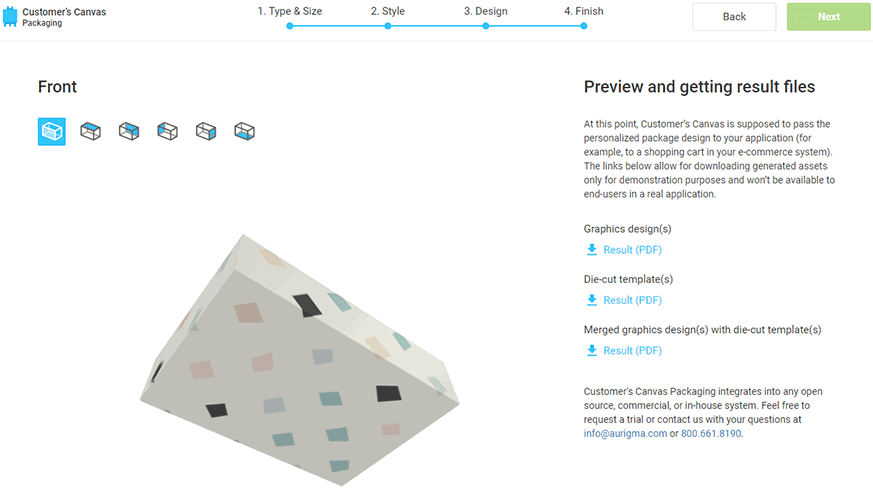
At the final step, you can preview the 3D model and download the resulting PDF files.
## See Also
### Manual
- [Configuring the Packaging Application](https://customerscanvas.com/docs/cc6/origami-settings.htm.md)
- [Origami Web API](https://customerscanvas.com/docs/cc6/origami-webapi.htm.md)