---
title: "Configuring Your First Print Product"
canonical: https://customerscanvas.com/docs/cc6/quick-start.htm
archived: true
applies_to:
- product: "Customer's Canvas On-Premises"
- product: "Design Editor"
versions: ["6.15.0", "6.x (may differ)"]
---
**You’re viewing outdated documentation.** [View the latest Customer’s Canvas On-Premises documentation](https://customerscanvas.com/docs/on-premises/).
# Configuring Your First Print Product
**Applies to:** Customer's Canvas On-Premises; Design Editor 6.15.0, 6.x (may differ) · **Archived documentation**
The [Understanding Print Products](https://customerscanvas.com/docs/cc6/understanding-print-products.htm.md) topic provides an overview for the capabilities of Customer's Canvas. Here, let us discuss some basic examples.
## Web Page Sample
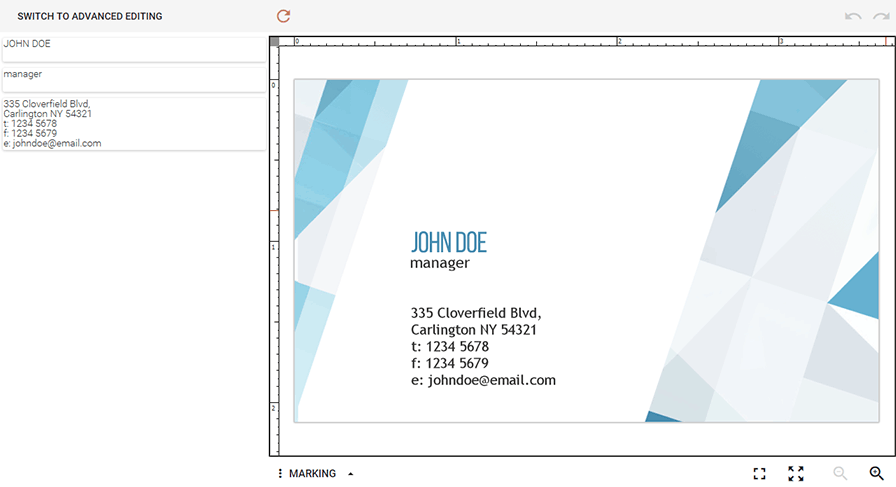
As said in the [Integration with E-commerce Overview](https://customerscanvas.com/docs/cc6/integration-with-e-commerce.htm.md) topic, to build Customer's Canvas into your system, you should add the IFrame API script and the <iframe> tag to the design page, and load the web-to-print editor into the IFRAME element. Let us assume that your Customer's Canvas shares a domain name with the main website and is located in the `/cc/` virtual folder. The following example of the simplest page displays the web-to-print editor and loads a business card template into the editor.
```html
Customer's Canvas Quick Start Sample Page
```
When the design page is loaded, it will display the `~\assets\designs\businesscard.psd` file in the editor.
## Multipage Products
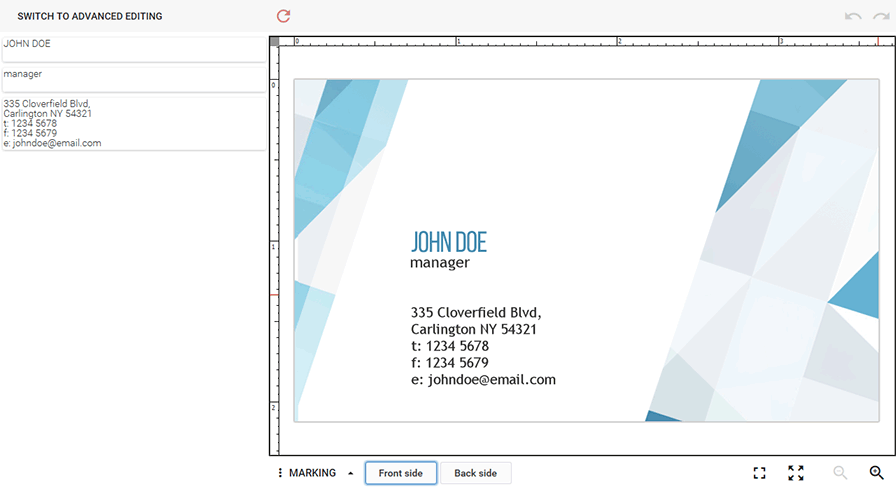
You can add as many surfaces (pages) to the product as you like. The [IProductDefinition](https://customerscanvas.com/docs/cc6/customerscanvas.iframeapi.objectmodel.iproductdefinition.htm.md) interface defines product surfaces as an array. For example, specify design templates for two surfaces of a double-sided business card.
```
productDefinition = {
surfaces: ["BusinessCard", "BusinessCard_BackSide"]
};
```
For multipage products having all their page templates stored in a folder, use the [ISurfacesFromFolder](https://customerscanvas.com/docs/cc6/customerscanvas.iframeapi.objectmodel.isurfacesfromfolder.htm.md) interface.
```
productDefinition = {
surfaces: { designFolder: "photoBook" }
};
```
For more information, see the [Multipage Products](https://customerscanvas.com/docs/cc6/multipage-products.htm.md) topic.
If you organize designs in subfolders, add a relative path to a template file name. For example, if you have a separate folder called `\businesscards\` for business card templates, the product definition may look as follows:
```
productDefinition = {
surfaces: ["businesscards\\modern"]
};
```
## Mockups
To let you have more realistic product design, the web-to-print editor allows for adding additional elements which improve the product preview, but are not printed in hi-res outputs. [Mockups](https://customerscanvas.com/docs/cc6/mockups.htm.md) are such a kind of these elements. If you have mockups, you can specify them by defining the [ISurfaceTemplate.mockup](https://customerscanvas.com/docs/cc6/customerscanvas.iframeapi.objectmodel.isurfacetemplate.htm.md) property.
```
productDefinition = {
surfaces: [
{printAreas: [{designFile: "envelopeDesign"}], mockup: {down: "envelopeMockup"} }
]
};
```
Also, you can set the [ISurfacesFromFolder.mockupFolder](https://customerscanvas.com/docs/cc6/customerscanvas.iframeapi.objectmodel.isurfacesfromfolder.htm.md) property to specify a folder containing mockups.
```
productDefinition = {
surfaces: { designFolder: "photoBook", mockupFolder: {down: "pageMockups"} }
};
```
Mockups may also be organized into subfolders, like design templates.
## See Also
### Manual
- [Integration with E-commerce Overview](https://customerscanvas.com/docs/cc6/integration-with-e-commerce.htm.md)
- [Understanding Print Products](https://customerscanvas.com/docs/cc6/understanding-print-products.htm.md)
- [Markings](https://customerscanvas.com/docs/cc6/configuring-rulers-and-grids.htm.md)
- [Mockups](https://customerscanvas.com/docs/cc6/mockups.htm.md)
### IFrame API Reference
- [IProductDefinition](https://customerscanvas.com/docs/cc6/customerscanvas.iframeapi.objectmodel.iproductdefinition.htm.md)
- [ISurfaceTemplate](https://customerscanvas.com/docs/cc6/customerscanvas.iframeapi.objectmodel.isurfacetemplate.htm.md)
- [ISurfacesFromFolder](https://customerscanvas.com/docs/cc6/customerscanvas.iframeapi.objectmodel.isurfacesfromfolder.htm.md)
- [IPrintAreaTemplate](https://customerscanvas.com/docs/cc6/customerscanvas.iframeapi.objectmodel.iprintareatemplate.htm.md)
- [IMockupTemplate](https://customerscanvas.com/docs/cc6/customerscanvas.iframeapi.objectmodel.imockuptemplate.htm.md)