

Eliminating cold start problem
If there are no HTTP requests for a certain amount of time (the default is 20 minutes), then IIS suspends the application pool. After that, when a new request comes in, a startup delay is observed because the worker process needs to restart the application pool, load the .NET environment, compile and initialize your code, and finally serve the request. This is a so-called cold start.
To avoid the suspension of the Customer's Canvas application pool, perform the following steps:
-
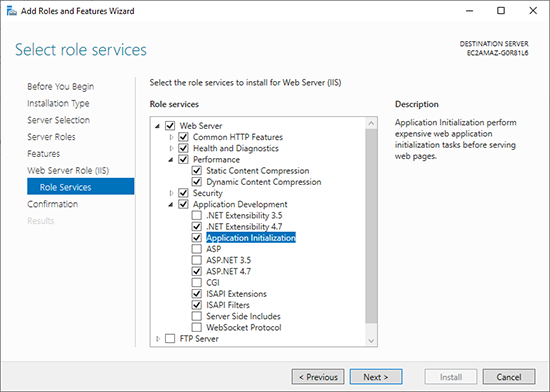
Install the Application Initialization role. In the Add Roles and Feature Wizard of Windows Server 2012 and higher, select the Application Initialization check box.
-
Enable the Always Running mode. In IIS Manager, right-click the Customer's Canvas application pool, and then click Advanced Settings. Set the Start Mode option to
AlwaysRunningand Idle Time-out (minutes) to0.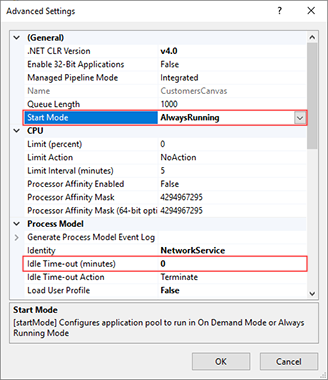
In Windows Server 2012, you also need to set Start Automatically to
True. Note, this setting was removed in Windows Server 2012 R2. -
Enable the auto-start provider and application preload. You can perform this step through the
%WINDIR%\System32\inetsrv\config\applicationHost.configfile as follows:-
Add a
<serviceAutoStartProviders>element to the<system.applicationHost>node to registerCcAutoStartProvider.<serviceAutoStartProviders><add name="CcAutoStartProvider"type="Aurigma.DesignEditor.CustomersCanvasInitialization, Aurigma.DesignEditor" /></serviceAutoStartProviders> -
Locate the entry for the Customer's Canvas site under the
<sites>node, enable the application preload, and register the auto-start provider for this site.<sites><site name="CustomersCanvas" id="1" serverAutoStart="true"><application path="/"applicationPool="CustomersCanvas"preloadEnabled="true"serviceAutoStartEnabled="true"serviceAutoStartProvider="CcAutoStartProvider"></application></site></sites>
-
After you have done all these changes, type iisreset at the command prompt to restart IIS.