Getting coordinates of design bounds
- 1 minute to read
When processing a design model, you may need to determine the bounds of the rectangle that fits all objects on the canvas and its upper-left corner relative to the print area or surface. This guide explains how to calculate these values, including handling bleed areas and multiple print areas.
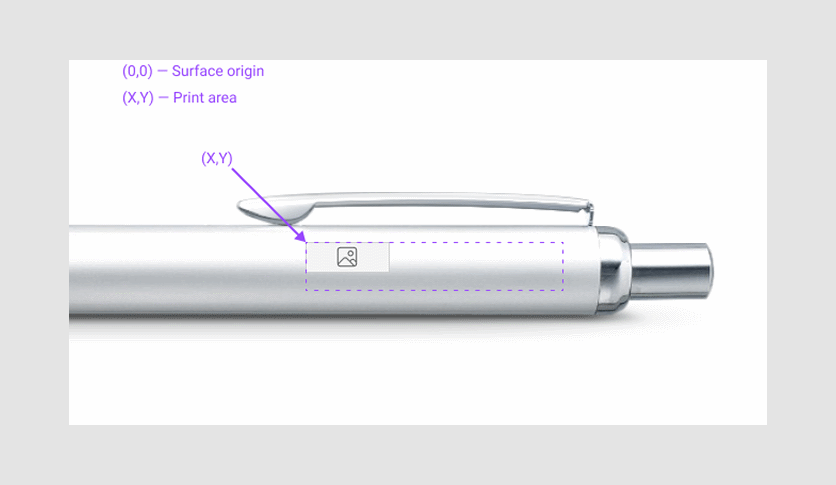
Step 1: Understand the relationship between surface, print area, and bleed area
- The surface size typically equals the print area size unless a bleed area is added.
- If a bleed area is present:
- The print area is calculated as:
Print Area = Surface Size - Bleed Area - Coordinates are relative to the print area bordered by the bleed line, not the surface.
- The print area is calculated as:
Step 2: Calculate the upper-left corner
To get the upper-left corner of the bounding rectangle in points, use the following code:
import { RectangleF } from "@aurigma/design-atoms-model/Math";
const { width, height, left, top } = RectangleF.getOverallBounds(rectangles);
leftandtopcontain the coordinates of the upper-left corner of the overall bounds.- Use
widthandheightto calculate other points if needed.
Step 3: Adjust coordinates relative to the print area
- If the print area and item coordinates are the same, they are relative to the surface.
- To get the position of the item relative to the print area, subtract the print area's coordinates from the item's coordinates:
import { Surface, PrintArea } from "@aurigma/design-atoms-model/Product";
const targetPrintArea = currentSurface.printArea[0];
const realLeft = left - targetPrintArea.bounds.left;
const realTop = top - targetPrintArea.bounds.top;
Step 4: Handle multiple print areas (Optional)
If there are multiple print areas, determine which print area the item belongs to. For example, check if the item's top-left corner is inside a print area:
const itemBelongsPrintArea = (printArea) =>
  left >= printArea.bounds.left && top >= printArea.bounds.top;
const targetPrintArea = currentSurface.printArea.find(itemBelongsPrintArea);

if (targetPrintArea == null) {
  throw new Error("An item is outside all print areas!");
}