Compiling source code
- 1 minute to read
Unsupported Project Error
Visual Studio shows the following Unsupported message when compiling the project.
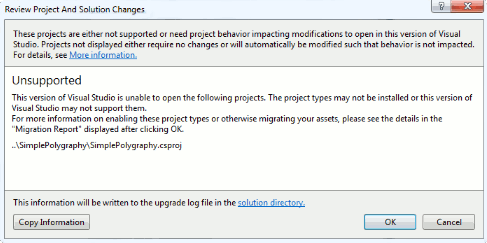
After you open the migration report which is displayed after the solution is loaded, you will most likely see the following message.

Solution
Start the repair process for your Microsoft Visual Studio, check the Web Developer Tools in the list of optional components, and finish repairing your IDE.
NewtonSoft.Json Library Missing
When you compile the solution, Visual Studio complains that it cannot find NewtonSoft.Json or other libraries.
Solution
Check if the Enable NuGet Package Restore option is enabled in the solution.
A Feature Supported Only in ECMAScript 6 Error
When you compile the solution, Visual Studio throws several errors saying that certain code works only with ECMAScript 6 or higher.

Solution
Update your TypeScript to version 3.8.2.
Bunch of TypeScript Errors
When you compile the solution, Visual Studio throws a bunch of TypeScript errors.
Solution
Check your TypeScript version:
- In Visual Studio 2015:
- In Visual Studio, on the Tools menu, click Extensions and Updates.
- In the Installed Tools list, click TypeScript for Microsoft Visual Studio.
- Verify that the TypeScript version is 3.8.2.
- Starting from Visual Studio 2017 update 2:
- Verify that TypeScript 3.8.2 is available in Tools > Options > Text Editor > JavaScript > IntelliSense, in the Use TypeScript version list.
If you have a different version, install TypeScript 3.8.2.