Barcodes
- Last updated on March 20, 2025
- •
- 6 minutes to read
Barcodes are machine-readable representations of textual information. They allow for placing readable text onto a design that can be scanned by specialized devices. There are numerous types of barcodes, ranging from QR codes, which can be read by almost any modern smartphone, to GS1 barcodes specifically used in retail and logistics industries.
In this article, we explain how to work with barcodes in the Template Editor and outline the most commonly used barcode types.
Creating the barcode
You can create barcodes using the top toolbar:

You may also press B to create a barcode or Q to create a QR code. In edit mode, stretch the rectangle. When you release the mouse, a barcode will be created in place of this rectangle.

Important
When creating a barcode, keep in mind that it will eventually be scanned by a device, which has certain physical limitations. Barcodes that are excessively large or small may fail to scan properly. Always adhere to industry standards and specifications regarding barcode size and line thickness for optimal results.
Editing a barcode
Barcodes primarily consist of two key parameters: format and value. Depending on the chosen format, additional restrictions may apply to the barcode's value.
For example, for EAN-13, it should be a 12-digit number (or 13-digit, but the last digit should be checksum calculated by a special algorithm), and for CODE-128, it can be any ASCII characters.
Leave the value empty when it needs to be filled in by end-users or when it is automatically filled in during variable data printing. In such cases, the editor displays a dulled barcode with the label No data on top of it. If the user does not enter anything there, then the barcode will not be displayed on the printed file.
If you need to display a fixed barcode on the template that is not supposed to be changed (for example, a QR code with the address of the company's website), you can enter the values directly into the Template Editor. If the value is invalid, you will see a hint explaining the reason.

Margin
Additional horizontal margins can be configured for barcodes to ensure proper spacing and legibility.

Pure barcode
This setting is enabled by default, displaying only the barcode itself. Disabling this option duplicates the encoded value under the barcode.

Note
For some barcode formats, these settings are ignored. They are relevant mainly for 1D barcodes. Margin is also used for some 2D barcodes.
Barcode color
The Fill color lets you change the color of the bars. You can also adjust the color of the space between the bars by editing the Background color.

Important
Scanners may struggle to interpret poorly contrasted barcodes. For best results, opt for a dark barcode against a light background, such as black on white. Check the result with scanners.
Commonly used barcodes
QR Code

One of the most widely adopted barcode types, QR codes can be scanned using nearly any modern smartphone. It is used to encode website addresses, phone numbers, and contact details.
When you choose a QR code, select its Type according to your intended purpose.

- None: Generic QR code without specific formatting.
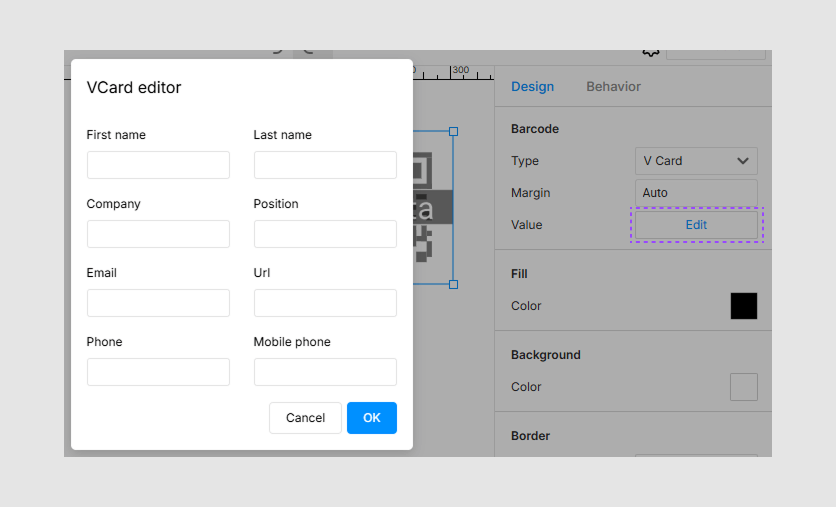
- V Card: Encodes contact information in vCard format, ideal for seamless import into mobile address books.
- Phone: Stores a telephone number.
- URL: Links to a web address.
- Data: Encapsulates custom data.
For all QR code types except V Card, you can edit the value as a regular string. For vCard, the Edit button appears in place of the Value field, which opens a window for entering contact data.
Note
For QR codes, you can use Margin as described above, but not the Pure barcode. Its value is never output.
Universal Product Code (UPC)
Primarily employed in retail environments, designed for use in the United States.
UPCs come in two variations:
- UPC-A: Comprises 12 digits and is the more prevalent barcode type.
- UPC-E: Consists of 7 digits and is utilized when limited space necessitates a compact barcode.

UPC structure:
- UPC-A:
N LLLLL RRRRR C - UPC-E:
N XXXXXX C
Where:
- N: Numbering system indicator.
- L****LLL: Manufacturer code.
- R****RRR: Product code.
- C: Checksum digit.
UPC-A permits customization of the LLLLL and RRRRR segments based on the leading N digit:
- 0–1, 6–8: Retail products (LLLLL: manufacturer code, RRRRR: product code).
- 2: Weight-based pricing (LLLL: product code, RRRR: weight or price).
- 3: Pharmaceuticals (both segments combined form a 10-digit National Drug Code).
- 4: Reserved for local store use (e.g., loyalty cards). You need to specify the LLLLL and RRRRR values.
- 5: Coupons (LLLL: manufacturer code, RRRR: product and discount info).
For UPC-E, only 0 and 1 are valid values for N, with the trailing digits dynamically assigning roles to the manufacturer and product identifiers.
If you don't enter the C digit, Customer's Canvas will automatically calculate the checksum and use it when generating the code. This means you can enter 12 digits for UPC-A or 7 digits for UPC-E. If you enter this number, Customer's Canvas will check its accuracy. If it is incorrect, it will display a message.
Note
You can find the algorithm that determines the code and calculates how to translate between UPC-A and UPC-E in the Wikipedia article about UPC-E.
For UPC barcodes, both Margin and Pure barcode work. As usual, the Pure barcode option is off for this barcode type.
European Article Number (EAN)
EAN-13 and EAN-8 are international counterparts to UPC-A and UPC-E, respectively.
EAN differs from UPC by an additional character at the beginning of the line. If you add 0 to the beginning of the UPC value, it will be a valid EAN value, and the barcode will look identical.

EAN barcode structure:
The first three characters are the GS1 Prefix, which encodes the GS1 member organization. As usual, it is the code of a country where the identifier was issued, but some values are reserved for a separate type of product. For example, the number 976 means ISBN (books), 979 followed by 0 is ISMN (sheet music), etc. You can find a complete list of these codes on the GS1 website.
The rest of the code body includes both manufacturer and product codes. But unlike UPC, their length may vary.
The last digit of this barcode also stores a checksum. Like for UPC, Customer's Canvas can automatically calculate a checksum if you omit it. If you enter a checksum, Customer's Canvas will validate it.
Note
For EAN barcodes, Margin and Pure barcode work. As usual, the Pure barcode option is off for this barcode type.
Intelligent Mail Barcode (IMB)
This barcode is used by the USPS to dispatch mail.
Important
You may encounter the need to use this barcode if you are using Customer's Canvas as part of a Direct Mail solution.

IMB supports two distinct value formats:
- Digital Codes: Strings of 20–31 characters (e.g.,
0027012345620080000198765432101). - Encoded Sequences: Four-letter sequences (F, T, A, D) spanning 65 characters (e.g.,
TTFAFDADTFFFADTAFAFTTDATDFAAFTDAFDFDFDATFDFTDDDDFADFFDADDTDDTTDAT).
Note
Customer's Canvas supports both options. For more details, see information on the USPS website.
It is very unlikely that you need to enter these values while designing a template. Typically, you just need to create an empty barcode and populate it when processing templates through API. It is supposed that you use USPS API to obtain these values.
Note
The Margin and Pure barcode properties are ignored for this barcode type.
Let's go further and learn how to set up auto-layouts.