Printing technique configuration
- Last updated on November 18, 2025
- •
- 3 minutes to read
You can configure printing techniques to define how designs are displayed and rendered based on different printing methods. This feature involves setting up layers (containers) with specific color and rendering rules: Full Color, Limited Color, and Colorless.
To use this feature, ensure that LimitedColor containers and Palette management are enabled in your tenant settings. If these features are not visible, contact our support team.
After selecting a container (for example, Main), the Constraints and Display & Rendering panels will appear in the right-side properties menu.
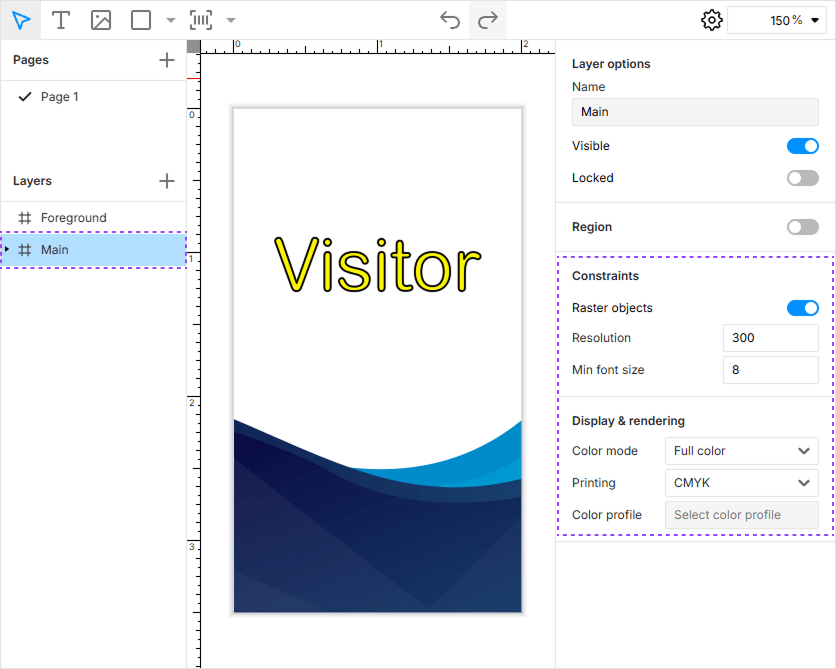
Constraints
Constraints enforce design rules during editing the template, functioning similarly to preflight checks. The available constraints include:
| Constraint | Description |
|---|---|
| Raster Objects | If disabled, prevents the use of raster images in the design. |
| Resolution | Sets the minimum required DPI for raster images. |
| Min Font Size | Defines the smallest allowed font size to ensure readability. |
If a design element violates one or more constraints, a warning icon appears next to it on the canvas. Hover over the icon to see details about the issue.

Display & Rendering
These settings control how designs appear in the workspace and how they render in the resulting print files (e.g., PDF). Three printing techniques (color modes) are available:
1. Full color
A standard full-color mode with support for RGB or CMYK color spaces.

| Setting | Description |
|---|---|
| Printing Color Space | Choose between RGB or CMYK. |
| Color Profile | Select a profile uploaded to your tenant for accurate color reproduction. |
2. Limited color
A restricted color mode for techniques with limited color options (e.g., screen printing, pad printing). Only colors from predefined palettes are allowed.

| Setting | Description |
|---|---|
| Max Colors | Sets the maximum number of colors allowed in the design. |
| Palette | Select a predefined color palette from your tenant's assets. The editor will enforce these colors, preventing unauthorized additions. |
Note that the Limited Color mode is currently available only in the Handy Editor.
3. Colorless
A monochrome/texture-based mode for techniques like engraving, foil stamping, or embossing. All colors in images and text are replaced with a single color or texture for visibility, while the resulting print file renders as monochrome (e.g., one-bit black-and-white format).
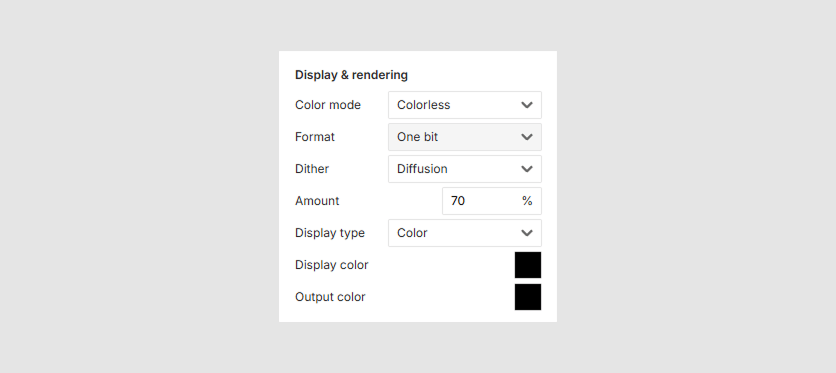
Dither
Dithering simulates shading in outputs (e.g., engraving, foil stamping) by applying patterns to create the illusion of gradients or textures.
| Setting | Description |
|---|---|
| Type | Choose the dithering algorithm: Diffusion, Pattern, Noise, or None. The default value is Diffusion. |
| Amount (%) | Controls the intensity of the Diffusion effect (0% = no dithering, 100% = maximum effect). The default value is 70. |
Select from the following dithering types:
| Type | Effect | Best For | Appearance |
|---|---|---|---|
| Diffusion | Creates smooth gradients using error diffusion (e.g., Floyd-Steinberg algorithm). | Photographic details, subtle shading. | 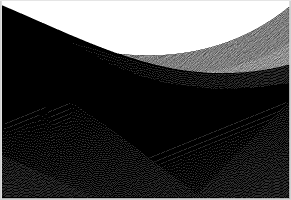 |
| Pattern | Uses ordered patterns (e.g., Bayer matrix) for structured dithering. | Geometric designs, halftone effects. | 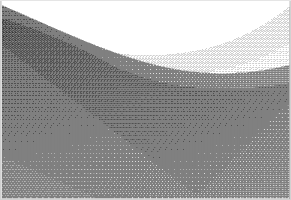 |
| Noise | Applies random noise for a grainy, textured appearance. | Organic textures, vintage effects. | 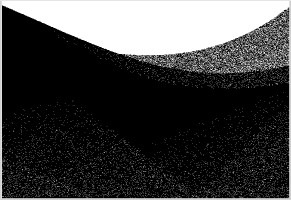 |
| None | Disables dithering (solid black/white or texture only). | Sharp, high-contrast designs. | 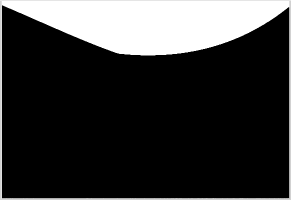 |
Display type
A color or texture used in the editor to preview the results. Does not apply to objects in edit or move modes.
| Setting | Description | Appearance |
|---|---|---|
| Color | Fills objects with a solid color. | |
| Texture | Applies a tiled image as a fill. | 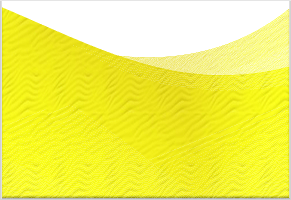 |
If Color is selected, the Display Color box appears. Click the color box to open a picker (supports RGB input, black by default).
For Texture, upload or select an image from your tenant. The texture tiles across the print area and remains fixed when objects are moved.
Output color
The color used in the final rendered output. Click the color box to open a picker (supports CMYK or RGB, depending on editor settings, black by default).