Fill and border properties
- Last updated on August 27, 2024
- •
- 2 minutes to read
Most elements in Customer's Canvas have fill and border settings. Their interpretation varies depending on the item type.
| Item type | How it looks* | Comments |
|---|---|---|
| Shapes | 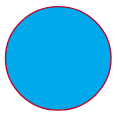 |
The fill and border of the element itself. |
| Text items |  |
The fill and stroke of the text frame. Note, it does not have anything to do with the color of text itself or its outline. See the Text article for details. |
| Images |  |
The fill of transparent pixels and the stroke around the image frame. |
| Barcodes/QR Codes |  |
The background color and border of the barcode. You can set the color of the barcode itself through a separate property as explained in the Barcodes article. |
*Blue is the fill color, and red is the border color.
Fill
The Template Editor only supports a solid fill.
When you need to apply a fill color, you can select an element, scroll down properties on the Design tab to the Fill section, and click the color box.

For more details about working with colors, refer to the Color picker topic.
Border
To change the border of an element, select it, scroll down properties on the Design tab to the Border section, and define the settings.

To turn it off, just set the width of the border to 0. If you need to enable a border, set a non-zero width.
Dashes
When you configure a border for shapes, you can also configure a dashed line.
To configure dashes, you need to write a sequence of numbers that describe a dash pattern. Each odd number is the length of a dash and each even number is the gap between dashes. The dash and gap length are always specified in points, regardless of the document unit. Dashes are drawn with a Border color, while gaps are drawn with an Alternative border color (if disabled, a transparent color is used).
The most typical dash setup is when you are using the same number for a dash and gap length, for example, 9 9.

However, you can use any combination of dashes and gaps, e.g. for 2 5 7 2, it will be:
- 2pt dash
- 5pt gap
- 7pt dash
- 2pt gap
- ...and the sequence repeats over and over again

Since you have to enter pairs of numbers, if you enter an odd amount of numbers, the Template Editor automatically adds the missing number, which is equal to the last number in a sequence. For example, if you type 8 12 4, it will become 8, 12, 4, 4.

Now, let's learn how you can work with colors in the Color picker.