

Barcode placeholders
When you create product templates, which are intended to be printed as machine-readable data, it is important to be able to specify the area into which the barcode will be inserted. The Design Editor allows for creating not only the barcodes themselves but also placeholders for them, in templates and during the editing process. This topic describes how you can do this.
Creating Barcode Placeholders
To add a barcode placeholder to your template, you should add an image and add the <BPH> marker to its name. When you open this template in the Design Editor, it may look as follows:
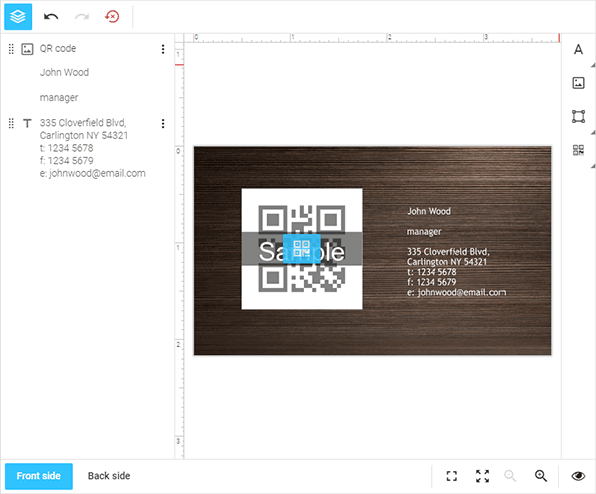
To define the content of barcode placeholders, click the Edit barcode button or double-click the barcode. When barcodes are added, they fit their placeholders.
Configuring Placeholder Manipulation Capabilities
In addition to the <BPH> marker, you can set markers that limit interactions between users and placeholders by locking the size and position of design elements:
<MAMH_f>- disallows moving the placeholder horizontally.<MAMV_f>- disallows moving the placeholder vertically.<MAD_f>- disallows deleting.<MAR_f>- disallows rotating.<MRC>- disallows resizing.
To ensure that the user cannot move, delete, rotate, or resize the placeholder, combine the <BPH> marker with the following set:
<MAMH_f><MAMV_f><MAD_f><MAR_f><MRC>

Changing the Type of Barcode Placeholders
When you define a barcode placeholder in your template, you can specify a barcode type as a value of the <BPH> marker. The Design Editor allows for using the following types of barcodes:
- QR Code corresponding to
<BPH_QR-CODE>or simply<BPH>. - European Article Number 8 corresponding to
<BPH_EAN-8>. - European Article Number 13 corresponding to
<BPH_EAN-13>. - Universal Product Code A corresponding to
<BPH_UPC-A>. - Universal Product Code E corresponding to
<BPH_UPC-E>. - Code 128 corresponding to
<BPH_CODE-128>. - Data matrix corresponding to
<BPH_Data-matrix>. - Intelligent Mail barcode corresponding to
<BPH_IMB>.
QR codes may represent either a URL, a phone number, or a vCard.
You can allow your users to change barcode types in the editor through the Top Toolbar. To enable the Change barcode type button in both the simple and advanced editing modes, add the <BACT> marker to the placeholder name.
