A preview can look right and still fail print requirements. Catch artwork problems earlier and prepare output files for the job your production team needs to run.
Turn customer artwork into production files
Catch artwork issues before handoff
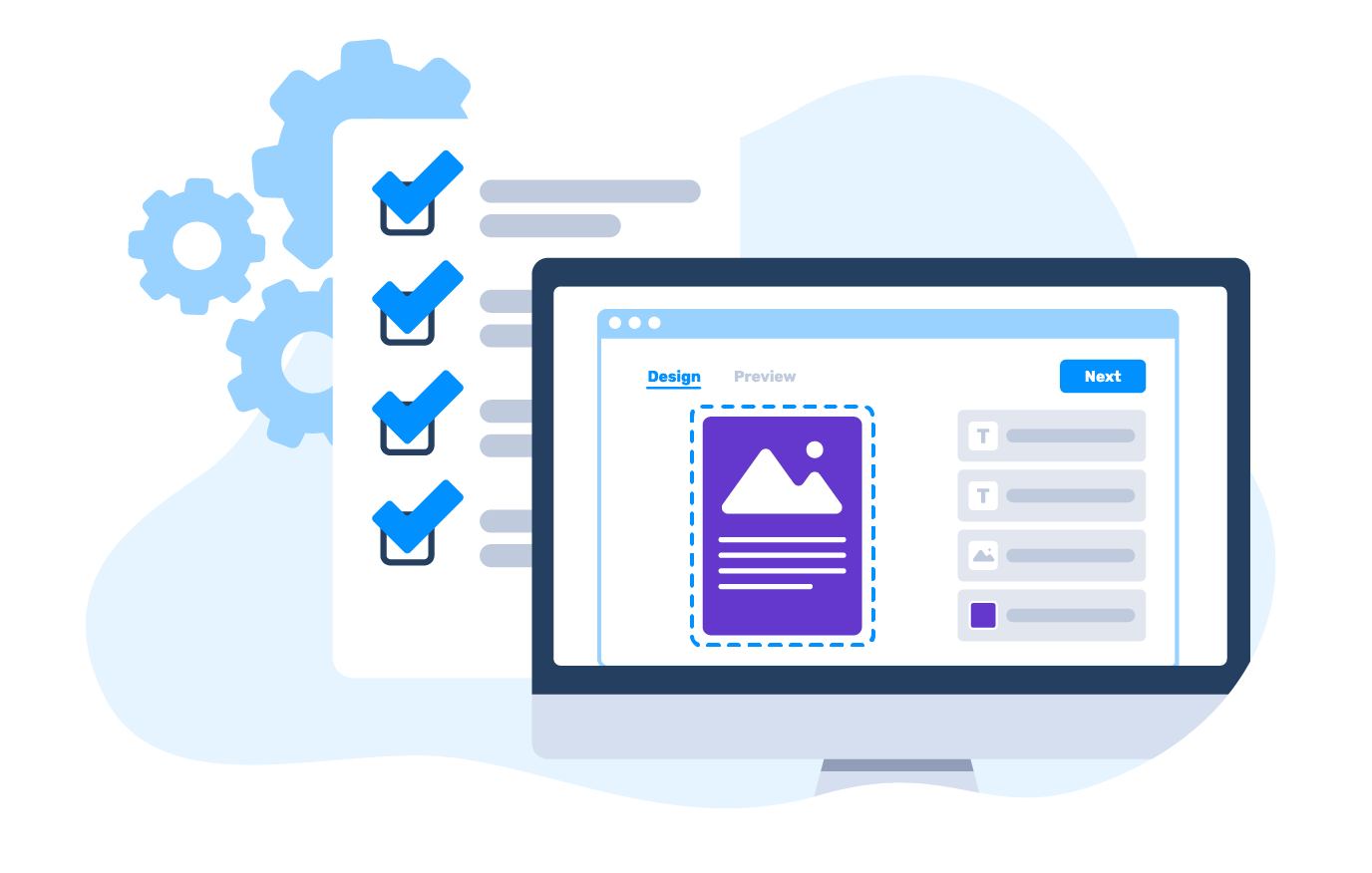
Customer artwork does not always arrive ready for production. Identify problems against the requirements of the print job, so fewer issues are discovered after the order reaches your production team.
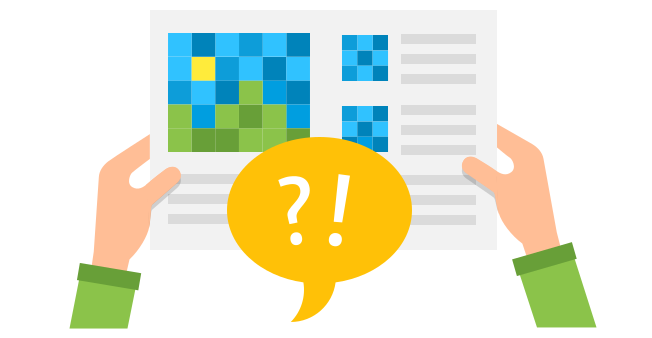
Image resolution
Identify raster images that fall below the configured resolution requirement at their intended print size.

Bleed and trim
Check supported bleed and trim settings, including page boundaries and artwork placement where the configured validation rules allow.
Fonts and colors
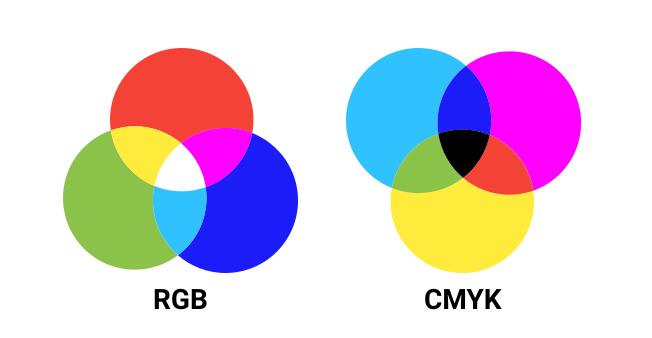
Check supported font properties and color-space requirements according to the configured validation rules and file format.

Warnings and available fixes
Show detected issues before the artwork moves forward. Where a supported correction is available, it can become part of the configured workflow. Not every warning can be resolved automatically.
Render the file, not just the preview
A customer preview shows how a design should look. Artwork checks help identify technical problems. A proof may be reviewed and approved by the people responsible for the job. None of these steps alone guarantees that the final file meets every production requirement.
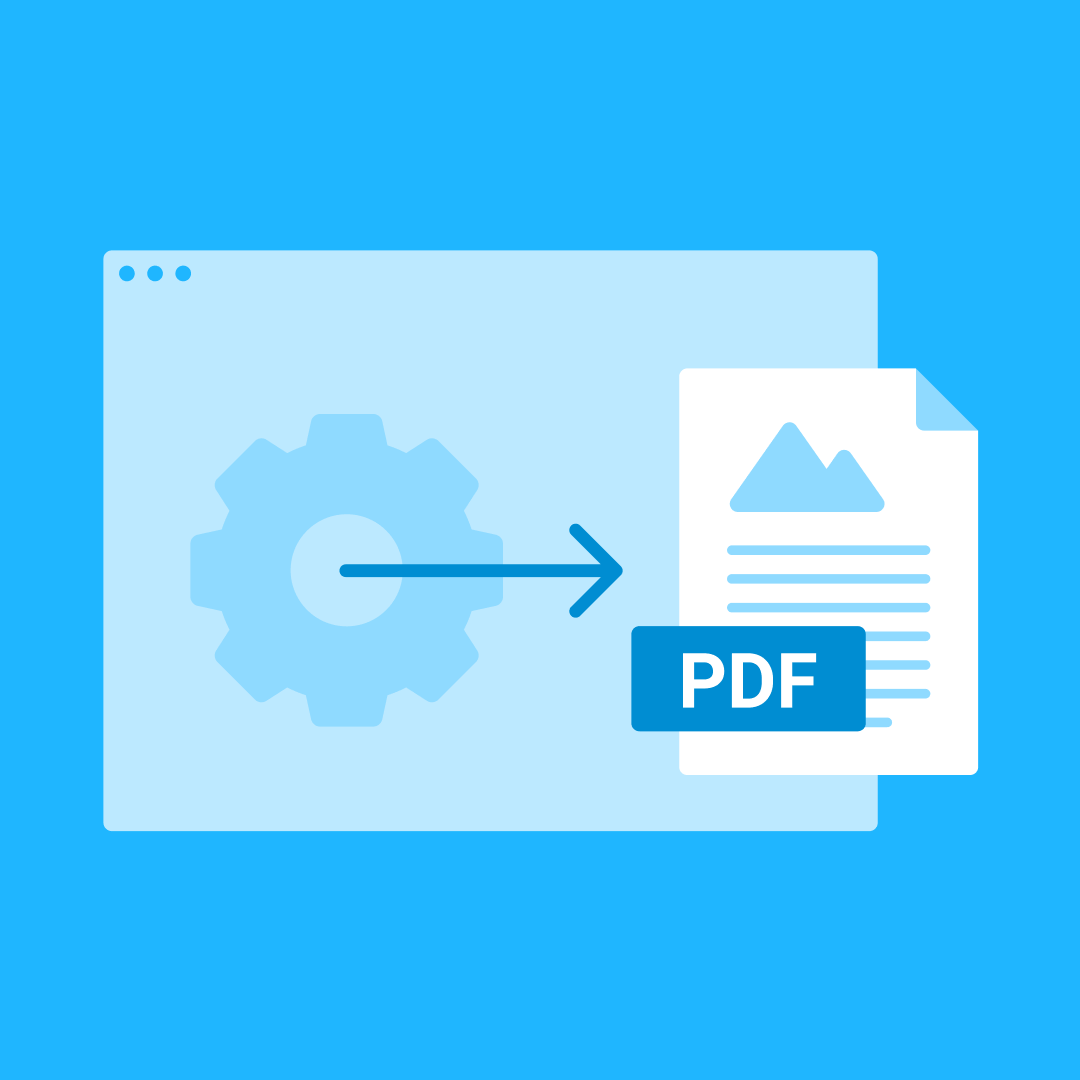
Customer's Canvas Hub can process personalized designs through configured rendering pipelines to generate output files for the next production step, including PDF files with specified settings.
The resulting files still need to meet the requirements of the intended print process. Final prepress review, RIP processing, and press acceptance remain the responsibility of the production workflow.
Different print products need different output
A business card, a folding carton, and a large-format banner place different demands on the artwork. Prepare files with the requirements of the physical product and printing process in mind.
Explore order workflows
Business cards
Keep the intended trim size, bleed, and text placement intact when names and other personalized details change.

Packaging and labels
Account for defined print areas and supplied dielines when preparing artwork for labels and cartons. A visual mockup does not replace the production geometry.

Large-format prints
Consider the finished dimensions and effective resolution of images at their intended print size, not just how the design looks on screen.
Keep the production workflow connected
Preparing a file is only part of the job. The resulting artwork needs to reach the people or systems responsible for the next production step.
Depending on the application and its configuration, files can be made available for download or passed into connected workflows. Production scheduling, RIP setup, and final press acceptance remain outside the personalization process.

Customer's Canvas Portal
Prepare personalized artwork as part of a complete online print ordering application, configured for your products and implemented with the services your project requires.

Customer's Canvas Hub
Add supported artwork validation, rendering, and file delivery capabilities to your existing storefront or application using configured workflows and APIs.
Get print files that fit your production workflow
See how artwork checks, rendering, and file handoff can be configured around the requirements of your print products.