

How to create pipelines
This tutorial walks you through building a pipeline that renders the ordered product and sends an email with links to the resulting print files. By the end, you'll have a working pipeline assigned to a PIM product.
The pipeline consists of the following operations:
These operations are performed using the following tasks:
Prerequisites
- A Customer's Canvas account with the PIM module enabled
- An online store connected to Customer's Canvas
If Pipelines is missing in the lower-left corner of BackOffice, contact our support team.
Create a pipeline file
- Select Pipelines in the lower-left corner, and then select Create new.
- In the Create new pipeline dialog box, select New blank pipeline.
- In the editor, enter the pipeline name, for example, Email notification.
- Switch to the code field and add a
tasksarray.
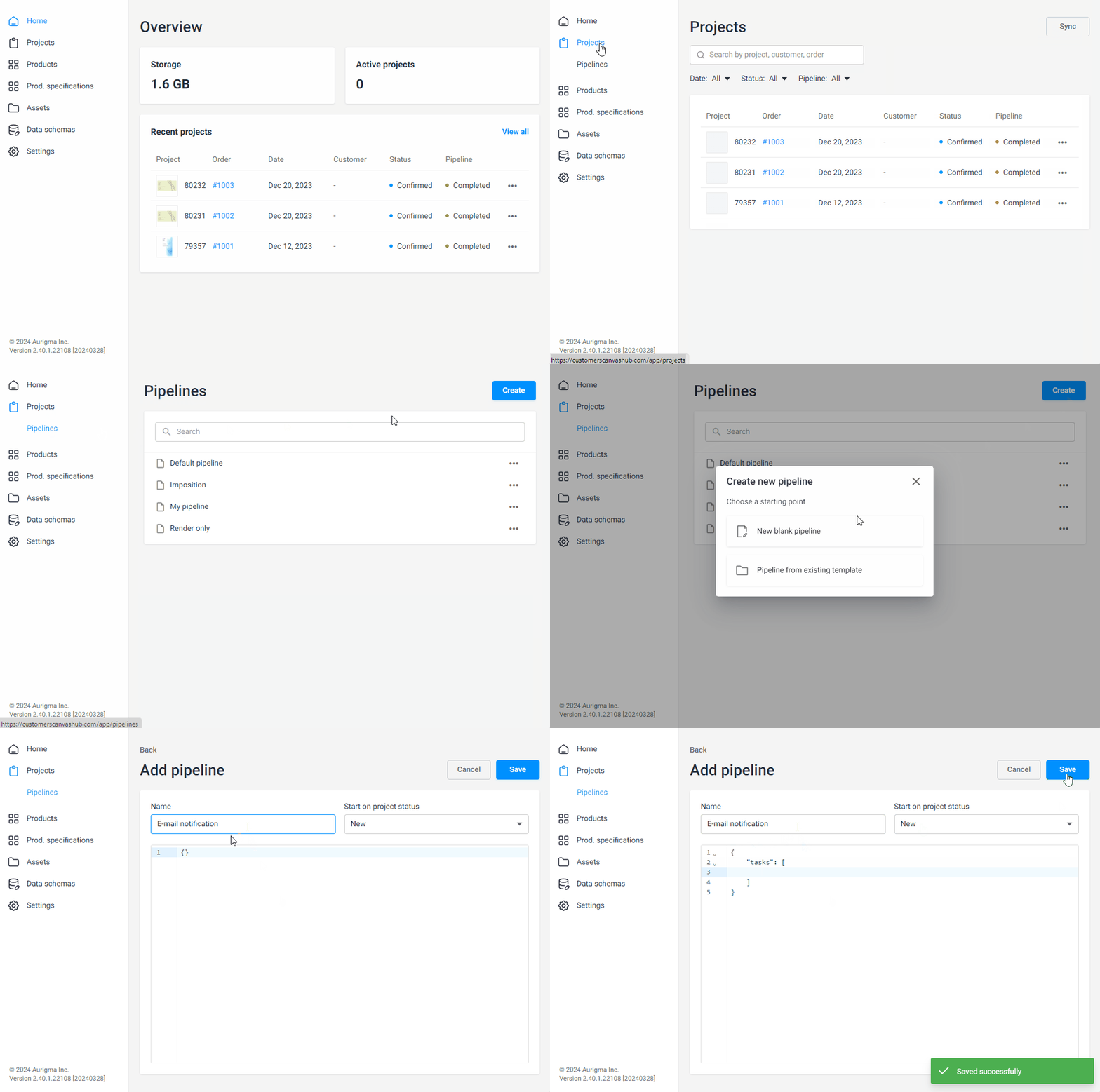
Add tasks
As soon as an order is made in your online store, a project is created in BackOffice. Add the following tasks to the pipeline one by one.
-
Add the
extract-project-designtask to get the personalized design from the project. Copy the following code and paste it into the pipeline file.{"description": "Extract design from project","name": "extract","type": "extract-project-design","parameters": {},"outputArtifacts": ["design"]}This task does not require
parametersorinputArtifacts. The result is passed to the next task asoutputArtifacts. -
Add the
render-hirestask to render the print files. Copy the following code and paste it into the pipeline file.{"description": "Render design","name": "render-hires","type": "render-hires","inputArtifacts": ["design"],"parameters": {"hiResOutputDpi": 300,"hiResOutputFileFormat": "pdf","hiResOutputColorSpace": "cmyk","hiResOutputToSeparateFiles": false,"hiResOutputChannelContainersToSeparateFiles": false,"hiResOutputChannelContainersRenderEmptyPage": true,"hiResOutputCompression": "Jpeg","hiResOutputJpegCompressionQuality": 90},"outputArtifacts": ["result"]}The task takes the
designartifact as input and usesparametersto configure the rendering. The print file name is defined inoutputArtifacts:"result"generates a single file, and"result*"generates a set of files.For details about the rendering parameters, refer to the Rendering print files task.
-
Add the
send-emailtask to send a notification with links to the print files. Specify the output artifact of therender-hirestask ininputArtifacts, and define an email template, recipients, and SMTP settings inparameters. Copy the following code, paste it into the pipeline file, and replace thehost,port,account,username,password, andrecipientsvalues with your own.{"description": "Send link to print file by email","name": "send-email","type": "send-email","inputArtifacts": ["result"],"parameters": {"host": "your-company-smtp-server.com","port": 587,"account": "noreply@your-company.com","username": "noreply@your-company.com","password": "your-secret-password","useSsl": true,"recipients": "first@example.com, another@example.com","subject": "Your print file {{project.items.@.fields.customName?}} is ready","body": "Greetings {{project.customerName}}. <br> You can download a print file for your personalized product here: <br> $$links$$ <br>","useHtmlBody" : true,"bodyLinksItemTemplate" : "<span>• <a href=\"$$url$$\">$$name$$</a></span><br>","bodyLinksItemNamePlaceholder" : "$$name$$","bodyLinksItemUrlPlaceholder" : "$$url$$","bodyLinksPlaceholder" : "$$links$$"}}This example overrides the SMTP settings with constant values. The
subjectcontains an interpolation placeholder{{project.items.@.fields.customName?}}, which takes its value from the order's fieldcustomName, if any. The{{project.customerName}}placeholder takes its value from the corresponding project field.For more details about the parameters, see the reference.
To learn how to pass custom fields when placing orders, refer to the Order widget.
-
Add the
finalizetask to assign the print files tofinalArtifactsand remove temporary files from the pipeline. Copy the following code and paste it into the pipeline file.{"description": "Finalize","name": "finalize","type": "finalize","finalArtifacts": ["result"]}
Resulting pipeline file
After adding these tasks, save the pipeline file. The resulting pipeline file looks like this:
{
"tasks": [
{
    "description": "Extract design from project",
    "name": "extract",
    "type": "extract-project-design",
    "parameters": {},
    "outputArtifacts": [
        "design"
    ]
},
{
    "description": "Render design",
    "name": "render-hires",
    "type": "render-hires",
    "inputArtifacts": [
        "design"
    ],
    "parameters": {
        "hiResOutputDpi": 300,
        "hiResOutputFileFormat": "pdf",
        "hiResOutputColorSpace": "cmyk",
        "hiResOutputToSeparateFiles": false,
        "hiResOutputChannelContainersToSeparateFiles": false,
        "hiResOutputChannelContainersRenderEmptyPage": true,
        "hiResOutputCompression": "Jpeg",
        "hiResOutputJpegCompressionQuality": 90
    },
    "outputArtifacts": [
        "result"
    ]
},
{
"description": "Send link to print file by email",
"name": "send-email",
"type": "send-email",
"inputArtifacts": [ "result" ],
"parameters": {
"host": "your-company-smtp-server.com",
"port": 587,
"account": "noreply@your-company.com",
"username": "noreply@your-company.com",
"password": "your-secret-password",
"useSsl": true,
"recipients": "first@example.com, another@example.com",
"subject": "Your print file {{project.items.@.fields.customName?}} is ready",
"body": "Greetings {{project.customerName}}. <br> You can download a print file for your personalized product here: <br> $$links$$ <br>",
"useHtmlBody" : true,
"bodyLinksItemTemplate" : "<span>• <a href=\"$$url$$\">$$name$$</a></span><br>",
"bodyLinksItemNamePlaceholder" : "$$name$$",
"bodyLinksItemUrlPlaceholder" : "$$url$$",
"bodyLinksPlaceholder" : "$$links$$"
}
},
{
    "description": "Finalize",
    "name": "finalize",
    "type": "finalize",
    "finalArtifacts": [
        "result"
    ]
}
]
}
Assign the pipeline to a product
Assign this pipeline to a PIM product. If you don't have any products yet, refer to the Creating products tutorial.
- Select Products in the menu.
- In the product row, select the ellipsis, and then select Edit.
- On the General tab, expand the Processing pipeline drop-down list and select Email notification.
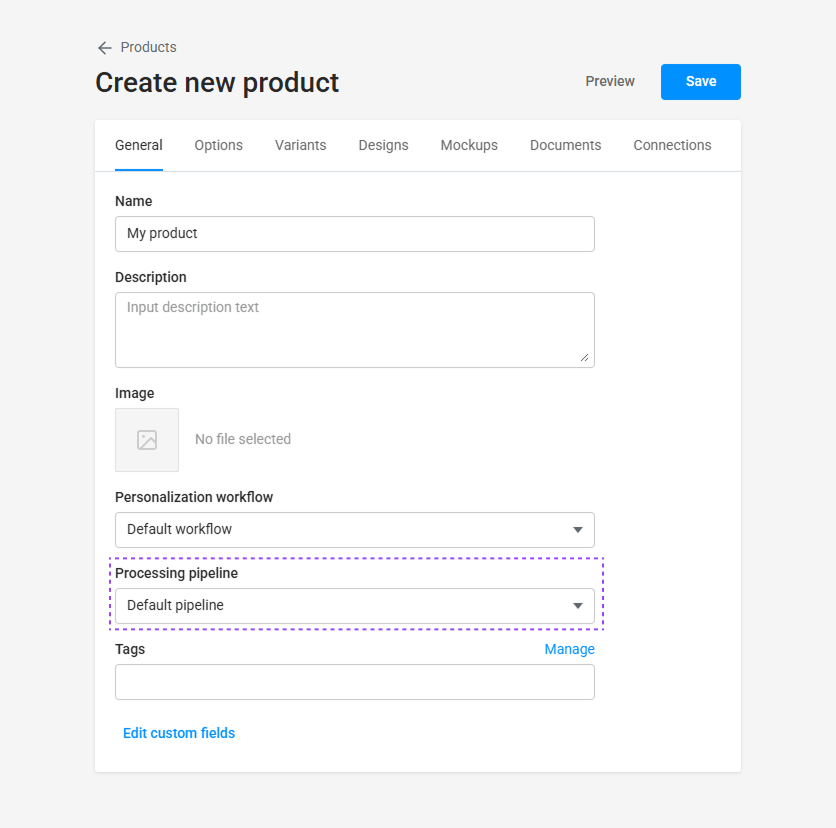
To verify how the pipeline works, order this product in your online store and check your mail.