
How to create new designs
In this article, you will learn how to create an InDesign document, and consider the features that Customer's Canvas supports.
New document
To create a new document, click File > New > Document. The Preset details panel will open, where you can set up a new document. Let's fill in the following properties to create a new one.

-
Width and Height. You can define the width and height for your design in these input fields.
-
Units. You can change the physical units, for example, to
centimeters,millimeters, orinches. -
Orientation. Customer's Canvas supports both the
portraitand thelandscapeorientations.
These are necessary fields to create a new document. To consider other features, read the next paragraph.
Additional settings
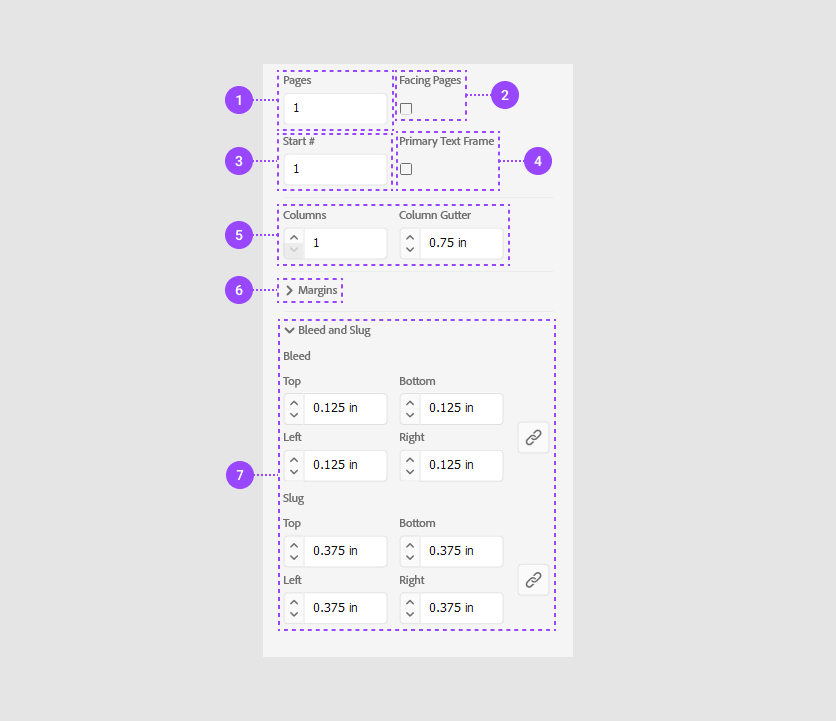
Here, you will learn which settings from the Preset Details panel are supported in Customer's Canvas.
| Number | Setting | Support | Description |
|---|---|---|---|
| 1. | Pages | Yes | Customer's Canvas allows you to create multipage designs. |
| 2. | Facing page | No | If you select this checkbox, a spread will be represented as one page in Customer's Canvas. |
| 3. | Start # | No | Customer's Canvas doesn't import page numbers. They will start from Page 1 |
| 4. | Primary text frame | Yes | This text frame will be displayed as a regular text frame in Customer's Canvas, but threaded text frames are ignored. |
| 5. | Columns and Column Gutter | No | Columns are ignored. |
| 6. | Margins | No | Margins are ignored. |
| 7. | Bleed and slugs | Yes | Customer's Canvas imports both bleeds and slugs. |