

Variables
Sometimes you may want to use the Design Editor to prepare a template for a variable data printing scenario rather than a final artwork. It means that you want to create not only regular "static" design elements such as text boxes, images, or shapes, but also insert variable elements.
What is a variable?
Variables are the elements that are supposed to be processed before creating a PDF file. Their values should be replaced based on the data entries provided downstream, before requesting a print-ready PDF file. In some scenarios, you populate data from a dataset (i.e. a series of data entries), which provides you with multiple copies of an artwork with different data inserted into the same variables.
Kinds of variables
The Design Editor supports two kinds of variables:
-
Variable elements. The entire element is a variable, and a data entry replaces its entire content. It can be a text element (both text areas and regular point texts), a barcode or QR code, or even an image placeholder.
-
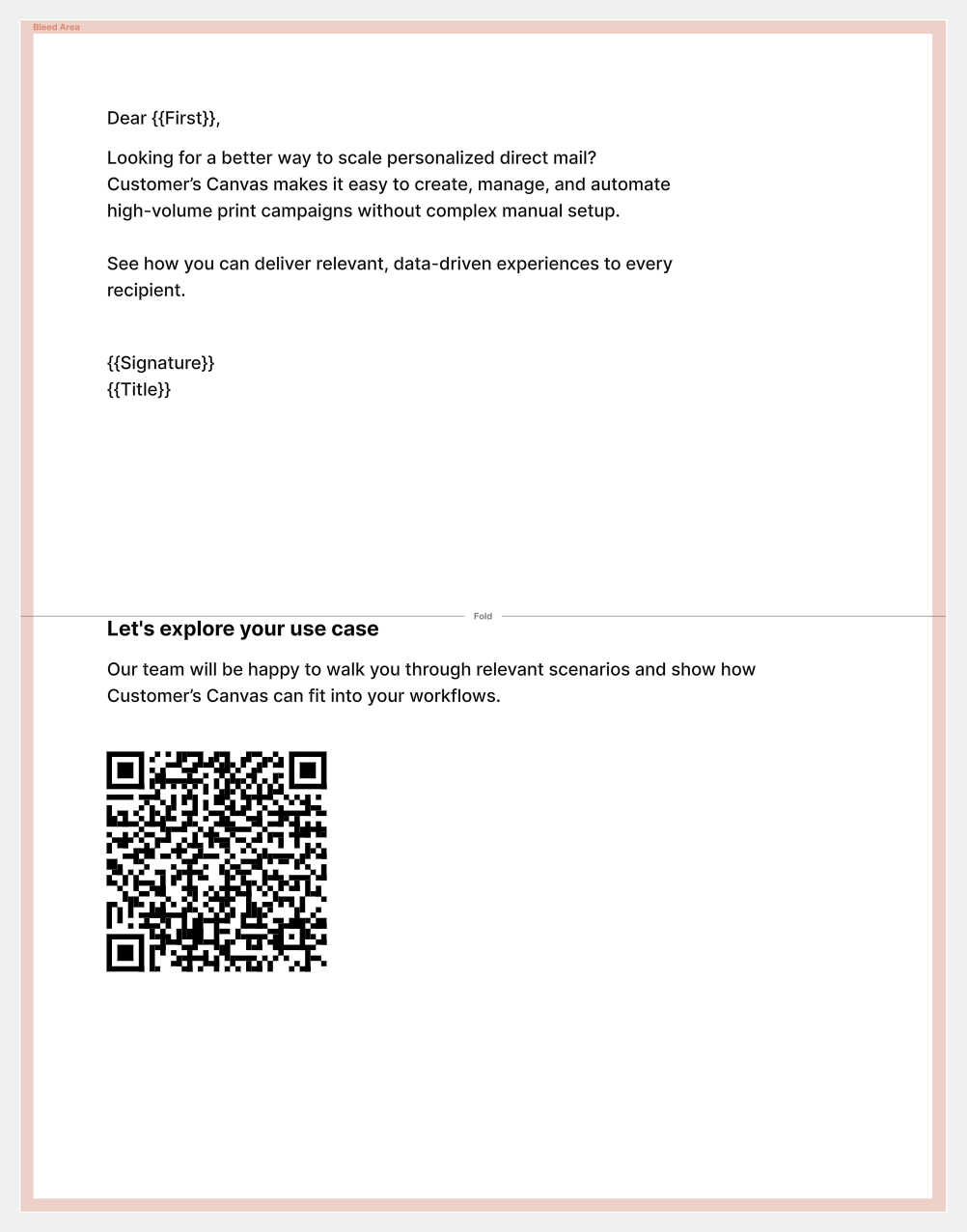
InString variables. This is a variable inserted inside a text block, like:
Dear {{FirstName}}!We are happy to announce that you won ${{Amount}}. Claim yourmoney by contacting your account manager {{AccountManagerName}}at {{AccountManagerPhone}}.Best regards,{{AccountManagerName}}Here,
{{FirstName}},{{Amount}},{{AccountManagerName}}, and{{AccountManagerPhone}}are InString variables that are interpolated right into the text content.
Ways to add variables
There are three ways to add variables to a design:
- Add them to a template beforehand:
- Variable elements can be added via the
<VAR>marker or by tagging an element as a variable through the Template Editor in Customer's Canvas Hub. - InString variables can be added by inserting a variable name surrounded by double curly brackets, as in the example above.
- Variable elements can be added via the
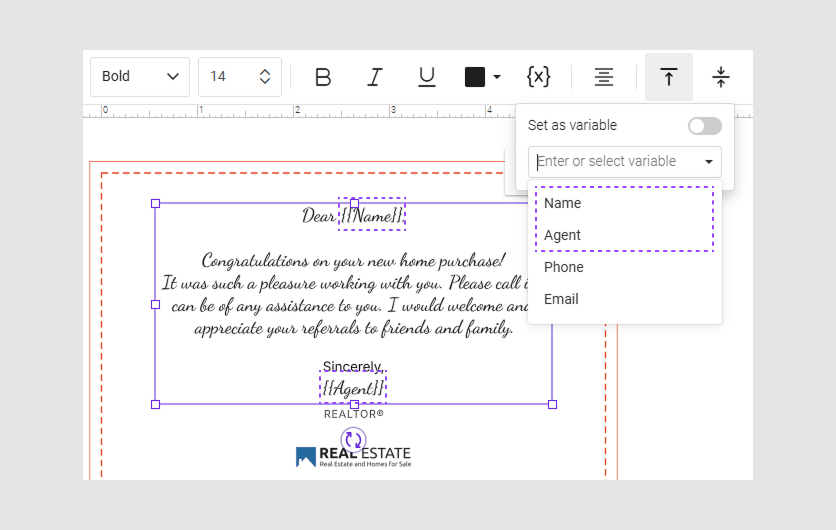
- Let users insert variable elements through the Toolbox. See Insert variable through Toolbox.
- Let users make elements variable in the editor itself. See Make variables through the editor.
Variable names and data entries
Each variable has a name. For variable elements, it is the element name. For InString variables, it is the content between {{ and }}, including all characters such as spaces. For example, the name of {{First Name}} is First Name.
When multiple elements or InString variables share the same name, the same value is inserted into all of them. For example, if you have a variable named Url as both a text element and a QR code, and you populate the Url data field, the value is inserted into both.