

Data folder issues
Copied Content Does Not Show in the Editor
You copy fonts or images to your server through a file manager, but they do not show in Design Editor.
Solution
- Recycle the application pool (or restart IIS). In IIS Manager, do the following:
- Open the Application Pools list.
- Select your application pool.
- Click Recycle.
- If you copy a whole folder, then additionally set the
NETWORK SERVICEgroup with Full control permissions to the folder. For more details, refer to Deployment to IIS.
Big Images Are Not Uploaded
You successfully upload small files but cannot upload big images to your server. Also, you may be unable to upload files which names contain spaces.
Solution
It might be a problem with IIS server configuration. Check the Maximum allowed content length: in IIS Manager, double-click Request Filtering, and then click Edit Feature Settings.
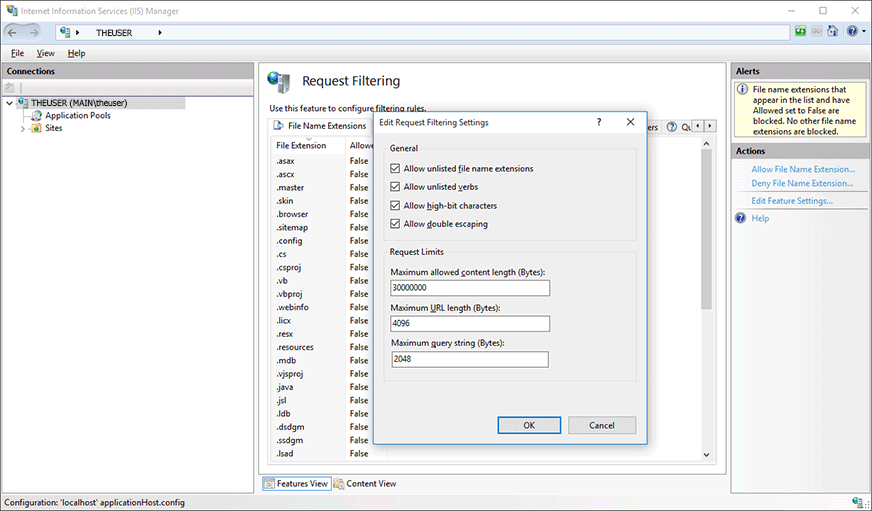
The default value is almost 30MB, which may not be enough, so set a bigger value. Also, make sure that the Allow double escaping option is enabled to download files which names contain a space character.
Could Not Find a Part of Path
You moved the data folders to a network location, but receive the Could not find a part of path message.
Solution
Set up permissions for the data folders. A user account, under which Design Editor runs in ASP.NET/IIS, must have the read/write access to the remote folders.