- Introduction
- What's New?
- Features
- Upgrading the Design Editor
- Breaking Changes in 6.0
- Getting Started
- Integration with E-commerce
- Integration with Remote Asset Sources
- Printable Files and Proof Images
- Configuring Products
- Creating Product Templates
- User Interface
- Configuration Files
- APIs
- Add-ons
- System Requirements
- Troubleshooting
- Migrating Your Applications
- Licensing
- Copyright Notices
You’re viewing outdated documentation. View the latest Customer’s Canvas On-Premises documentation.
Binding Shopify and Customer's Canvas
Applies to: Customer's Canvas On-Premises; Design Editor 6.15.0, 6.x (may differ) · Archived documentation
To start the integration, you need to create a private app for Customer's Canvas and register its data in the Customer's Canvas backend. Let us take a look at how this can be done.
Creating the Customer's Canvas App in Shopify
- In the Shopify admin panel, click Apps, and then click Manage private apps.
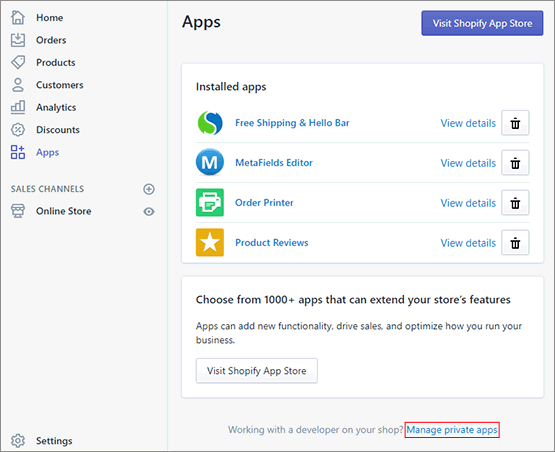
- Click Create a new private app.
- Type CustomersCanvas and your contact e-mail.
- In the Admin API section, in the Products, variants and collections list, select READ AND WRITE access.
- Click Save.
As a result, you have a private app for Customer's Canvas. If you click Manage private apps, you can see an API key and a password, which you will need later.
Setting Up the Customer's Canvas Instance
Now, you need to go to the Customer's Canvas backend and make the following changes.
- Log on to h.customerscanvas.com, and navigate to https://h.customerscanvas.com/Account/Settings
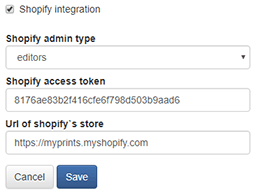
- Select Shopify integration.
- In Shopify admin type, select editors.
- In Shopify access token, type your password specified in the private apps settings of Shopify.
- Type or copy-paste your Shopify URL as a subdomain of
myshopify.com, for example,https://myprints.myshopify.com - Click Save.
- Navigate to the Shopify tab.
- In the Customer's Canvas instance URL, copy and paste your URL, e.g.
https://h.customerscanvas.com/Users/93d17983-f5c5-46dd-9c45-ec0b0e4774a1/SimplePolygraphy
If done correctly, you will see a list of products on the Shopify tab. After that, you can embed Customer's Canvas as explained in Adding Customer's Canvas to a Theme.