- Introduction
- What's New?
- Features
- Upgrading the Design Editor
- Breaking Changes in 6.0
- Getting Started
- Integration with E-commerce
- Integration with Remote Asset Sources
- Printable Files and Proof Images
- Configuring Products
- Creating Product Templates
- User Interface
- Configuration Files
- APIs
- Add-ons
- System Requirements
- Troubleshooting
- Migrating Your Applications
- Licensing
- Copyright Notices
Creating Applications with Design Atoms Framework
Applies to: Customer's Canvas On-Premises; Design Atoms .NET 6.15.0, 6.x (may differ); Design Atoms JS 6.15.0, 6.x (may differ) · Archived documentation
This topic describes how you can create a web application and what packages you need to install for the Design Atoms Framework. You can refer to a sample application demonstrating how you can use the Design Atoms Framework in the following GitHub repository:
Now, let us see how to create an application using the Design Atoms Framework from scratch.
Prerequisites
- Download and install Microsoft Visual C++ 2017 Redistributable Package (x64).
- Download and install Microsoft .NET Framework 4.6.2 or higher.
- Download Visual Studio 2017 or higher and install it with the ASP.NET and web development and Node.js development workloads enabled.
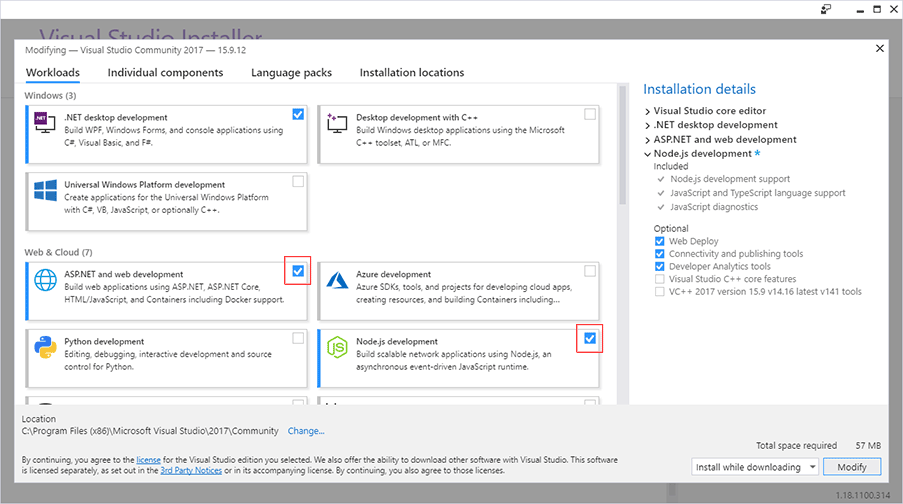
- Download and install TypeScript SDK 3.8.2 for Visual Studio. Note that you may receive compilation errors if you install a different version of TypeScript.
- Download and install node.js 10.15.3 (x64) or higher.
Creating a Web Application
- In Visual Studio, create a new project ASP.NET Web Application (.NET Framework).
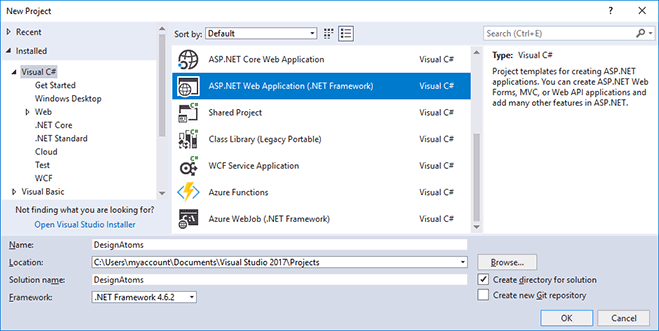
- When creating the project, use the Web API project template.
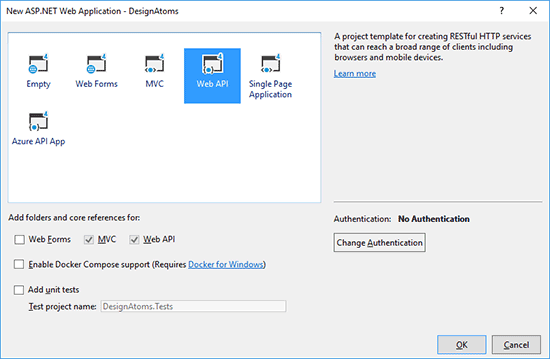
- Select the 64 bit version of IIS Express:
- On the menu, click Tools > Projects and Solutions > Web Projects.
- Select Use the 64 bit version of IIS Express for web sites and projects.
- Install the NuGet package. There are two ways to perform this:
- On the menu, click Tools > NuGet Package Manager > Manage NuGet Packages for Solution and search for Aurigma.DesignAtoms.
- Open Tools > NuGet Package Manager >
Package Manager Console and type:
Install-Package Aurigma.DesignAtoms
- Install the Node.js package. At the command prompt, navigate to your project folder and type:
npm install
@aurigma/design-atoms--save - Register your license key for Customer's Canvas as described in Registering Production License Keys.
- In the
Global.asax.csfile:- At the beginning of Application_Start, add
Aurigma.DesignAtoms.Configuration.Configuration.Setup(enableCors: true); - At the end of Application_Start, add
Aurigma.DesignAtoms.Licensing.License.Check();
- At the beginning of Application_Start, add
- In the
App_Start\WebApiConfig.csfile, remove this line:config.MapHttpAttributeRoutes();NoteYou don't need to call HttpConfigurationExtensions.MapHttpAttributeRoutes() here, because Aurigma.DesignAtoms.Configuration.Configuration.Setup calls this method.
- Start your application.
Now, you can start using this framework and refer to the following topic for more details.
See Also
Manual
- Design Atoms Sample Project
- Registering Production License Keys
- Design Atoms Framework Overview
- Working with the Object Model