

Measure units
On this tab, you will observe measure units that are used in Customer's Canvas. You can see them when you create a blank design in the Template Editor or a preset for the Template Editor.
Overview
Let's see how measure units look like:
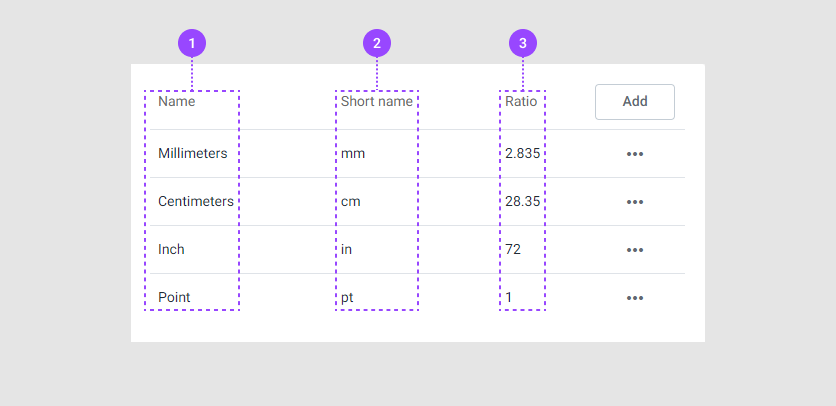
- Name. The measure unit name.
- Short name. The abbreviation of the measure unit.
- Ratio. The value to convert the unit to the default measure units, points.
By default, points, inches, centimeters, and millimeters are defined in your tenant.
The standard unit in Customer's Canvas is a point, i.e. 1/72 of an inch. To define other units, you must specify their ratio to a point.
Manipulations
You can edit and delete an already defined unit and add a new one.
Adding
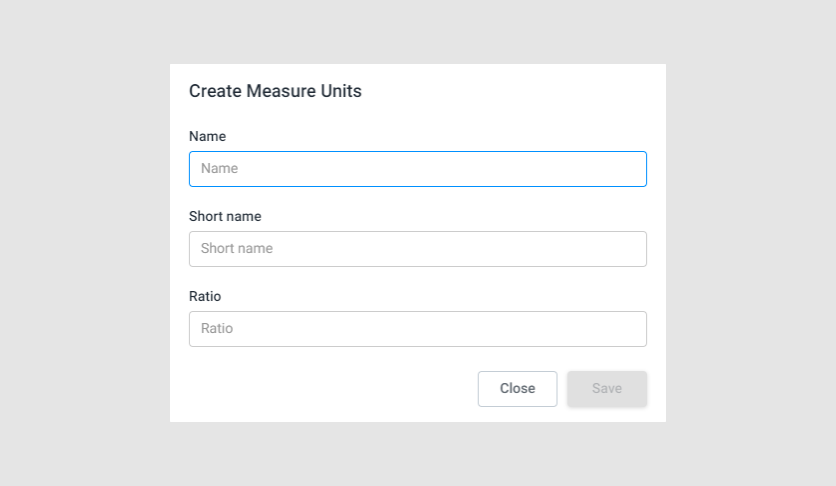
To add a new unit, click Add. In a new dialog box, fill in the name, the short name, and the ratio text fields.
Editing
To edit a unit, click the ellipsis and select Edit.
Here, you can change the name, the short name, and the ratio.
Deleting
To delete a unit, click the ellipsis and select Delete.