- Introduction
- What's New?
- Features
- Getting Started
- Integration with E-commerce
- Integration with Remote Asset Sources
- Printable Files and Proof Images
- Configuring Products
- Creating Product Templates
- User Interface
- Configuration Files
- API
- Visual Proofing Tool
- Variable Data Printing
- System Requirements
- Troubleshooting
- Licensing
- Copyright Notices
Evaluating Customer's Canvas
Applies to: Customer's Canvas On-Premises; Design Editor 4.4.25, 4.x (may differ) · Archived documentation
You may have already learned on our site that Customer's Canvas is distributed in two versions: on-premises and hosted. The on-premises version is deployed on your Windows server, physical or virtual, giving you full control over its resources and configuration. This version requires experience with ASP.NET. The hosted version is already deployed on our servers and it does not require any Windows server experience. Even though both versions have the same features and provide the same capabilities to integrate into web-to-print sites, we offer two different trials:
- The On-premises Trial can be requested on the Request On-premises Trial page. This package is a Windows installer file which deploys Customer's Canvas to a development computer.
- The Hosted Trial can be requested on the Request Hosted Trial page. This package requires only a web browser to start the evaluation.
The trial versions include a demo application demonstrating features of our product and how they can be applied to a typical web-to-print workflow (e.g. selecting and editing a product, approving the customized product using proof images, and getting the print-ready output). They also include code examples, which plainly show how to build Customer's Canvas into a page.
Both trial versions are full-featured and the only limitation is that they expire in 14 days.
Evaluating Customer's Canvas On-premises
When you request the Customer's Canvas evaluation package, you get an e-mail containing the installer download link.
To launch the trial application, perform the following steps:
- Download
CustomersCanvasTrial.exeand run it. When the installation is finished, Customer's Canvas appears as Aurigma Customer's Canvas 4.4.25 Evaluation in the All apps group, on the Start menu.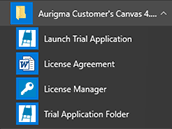
- Click License Manager. Note that this tool requires an Internet connection to register an evaluation license key.
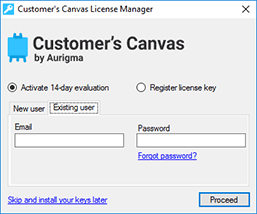
- Click Activate 14-day evaluation, fill in your account details, and then click Proceed.
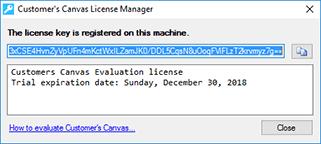
- Verify the license type and expiration date in the confirmation dialog.
- Click Launch Trial Application.
To launch the application on an old computer, like Windows 7, make sure that Microsoft Internet Explorer 11 or higher is installed. This is required even if you run the application in a different browser because the IE engine is used for LESS compilation on the server side.
Now, you can continue with:
- Learning more about integrating Customer's Canvas into your system; see the Integration with E-commerce Overview topic.
- Learning more about adding your own product templates; see the Configuring Your First Print Product topic.
- Learning more about license types and registering license keys; see the Registering Production License Keys topic.
Evaluating Customer's Canvas Hosted
When you request the trial, you get an e-mail confirmation containing:
- Your login and password for your Customer's Canvas account.
- The API URL used to integrate Customer's Canvas into your system. The URL appears as follows:
https://h.customerscanvas.com/Users/xxxxxxxx-yyyy-xxxx-yyyy-xxxxxxxxxxxx/SimplePolygraphy/Resources/SPEditor/Scripts/IFrame/IframeApi.js, where xxxxxxxx-yyyy-xxxx-yyyy-xxxxxxxxxxxx is a unique identifier of your Customer's Canvas instance.
Though you can still use the HTTP protocol, it's recommended to integrate the Hosted solution using the HTTPS protocol due to the move towards a more secure web.
To run the trial application, you just need to open index.html in your browser.
Now, you can continue with the following:
- Getting familiar with the hosted version of Customer's Canvas; see the Understanding the Hosted Version of Customer's Canvas topic.
- Learning more about the integration of Customer's Canvas into your system; see the Integration with E-commerce Overview topic.
- Learning about adding your own product templates; see the Configuring Your First Print Product topic.
Demo Application Overview
Both trial versions contain a one-page demo application. It illustrates a typical web-to-print workflow which includes selecting and editing a product, approving the customized product using proof images, and getting the print-ready output. Project functionality and the interface are the same for both versions of Customer's Canvas.
Here is an overview of the application.
On the first step, you can select a product and edit it.
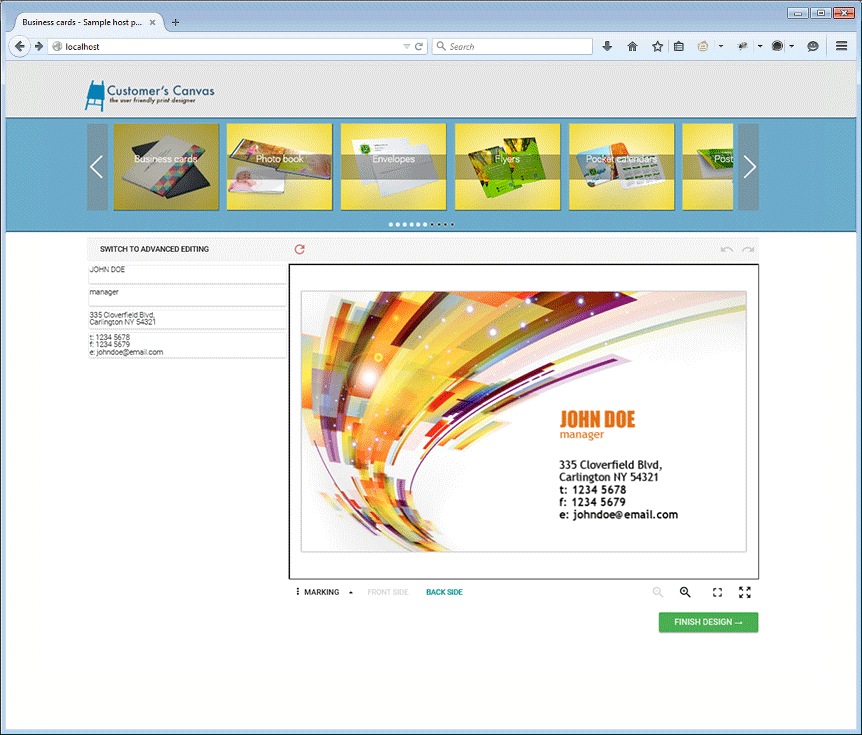
On the next step, you should approve the customized product. Customer's Canvas displays proof images and allows you to approve them or return to editing the product.
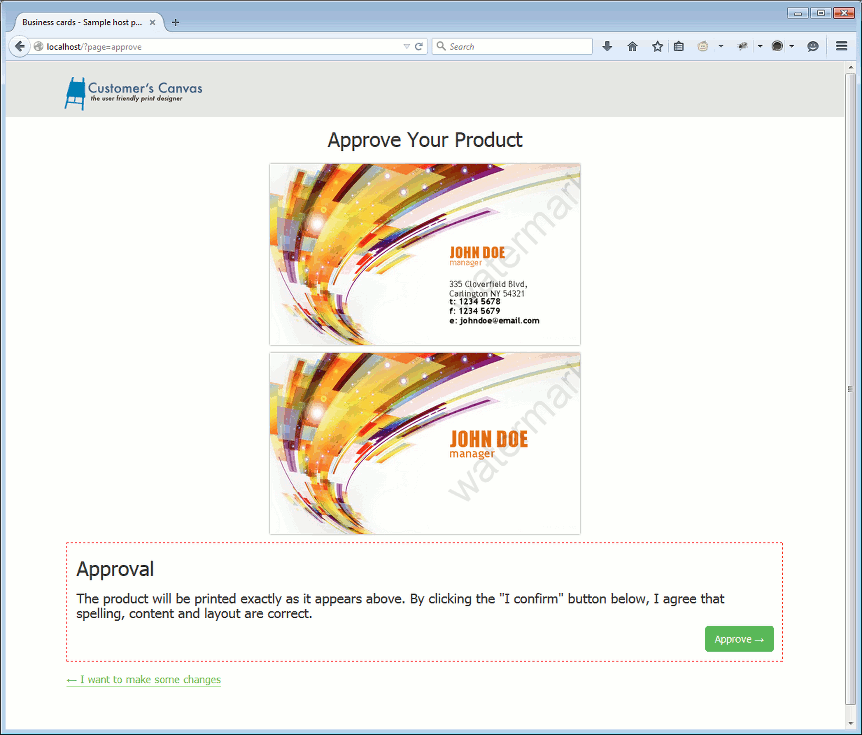
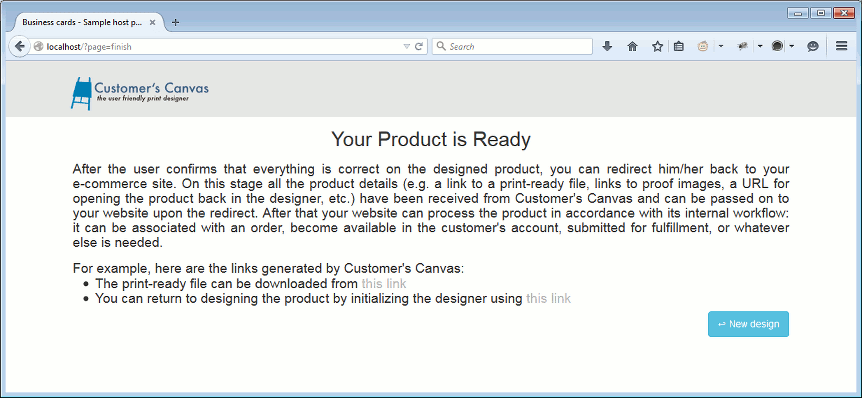
On the last step, you can download the print-ready file.