- Introduction
- What's New?
- Features
- Upgrading the Design Editor
- Breaking Changes in 6.0
- Getting Started
- Integration with E-commerce
- Integration with Remote Asset Sources
- Printable Files and Proof Images
- Configuring Products
- Creating Product Templates
- User Interface
- Configuration Files
- APIs
- Add-ons
- System Requirements
- Troubleshooting
- Migrating Your Applications
- Licensing
- Copyright Notices
Service Accounts
Applies to: Customer's Canvas On-Premises; Design Editor 6.15.0, 6.x (may differ) · Archived documentation
You can use assets from your service account in web applications. This topic describes how you can obtain a private key and an access token to allow your users to work with your Google Drive assets.
Getting a Private Key
To enable your images in Customer's Canvas, you need to delegate domain-wide authority to your service account and download a private key. For an existing service account, you can perform this on the Service accounts page. Also, you can get a private key when creating a new service account. Select Furnish a new private key and click Save to start downloading your private key.
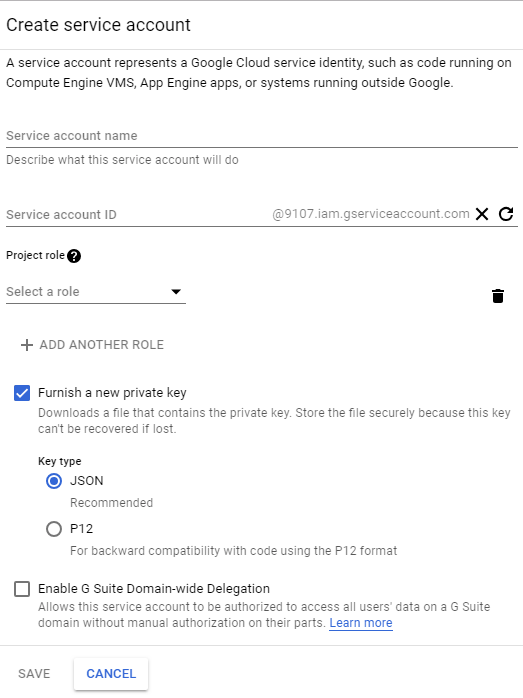
After you have downloaded a JSON file with your private key, copy the private_key field and save it to a separate file in the PKCS #8 format, for example:
-----BEGIN PRIVATE KEY-----
MIIBVgIBADANBgkqhkiG9w0BAQEFAASCAUAwggE8AgEAAkEAq7BFUpkGp3+LQmlQ
Yx2eqzDV+xeG8kx/sQFV18S5JhzGeIJNA72wSeukEPojtqUyX2J0CciPBh7eqclQ
2zpAswIDAQABAkAgisq4+zRdrzkwH1ITV1vpytnkO/NiHcnePQiOW0VUybPyHoGM
/jf75C5xET7ZQpBe5kx5VHsPZj0CBb3b+wSRAiEA2mPWCBytosIU/ODRfq6EiV04
lt6waE7I2uSPqIC20LcCIQDJQYIHQII+3YaPqyhGgqMexuuuGx+lDKD6/Fu/JwPb
5QIhAKthiYcYKlL9h8bjDsQhZDUACPasjzdsDEdq8inDyLOFAiEAmCr/tZwA3qeA
ZoBzI10DGPIuoKXBd3nk/eBxPkaxlEECIQCNymjsoI7GldtujVnr1qT+3yedLfHK
srDVjIT3LsvTqw==
-----END PRIVATE KEY-----
Later, you will specify a path to this file (as ServiceAccountKeyPath) in Web.config of the Google Drive web service.
For more details about creating a Google service account, you can refer to the following instructions: https://developers.google.com/identity/protocols/OAuth2ServiceAccount
Generating a Customer's Canvas Token
For your service account, you can generate a token by using the getToken(userId) method of the Google Drive web service.
URL: /api/source/gettoken?userid={userId}
Request type: [GET]
URL param: userId=[string] - an email allowing you to impersonate users
Success response:
1BC29B36F623BA82AAF6724FD3B16718Example of usage:
$.ajax("https://localhost:44352/api/source/gettoken?userid=john@example.com", {
    type: "GET",
    headers: { "X-GoogleDriveAPIKey": "myapikey" },
    contentType: 'application/json; charset=utf-8',
    success: function(token) {
        console.log(token);
    }
});
To initialize the Customer's Canvas editor, you should pass the generated value as the token property of the assetSources configuration.
{
  "assetSources": {
    "[source]Google Drive": {
      "type": "RemoteSource",
      "url": "https://example.com:3124/",
      "requestParams": {
        "token": "XXXXXXXXXXXXXXXXXXXXXXXXXXXXXXXX"
      }
    }
  }