- Introduction
- What's New?
- Features
- Upgrading the Design Editor
- Breaking Changes in 6.0
- Getting Started
- Integration with E-commerce
- Integration with Remote Asset Sources
- Printable Files and Proof Images
- Configuring Products
- Creating Product Templates
- User Interface
- Configuration Files
- APIs
- Add-ons
- System Requirements
- Troubleshooting
- Migrating Your Applications
- Licensing
- Copyright Notices
Packaging Designer
Applies to: Customer's Canvas On-Premises; Design Editor 6.15.0, 6.x (may differ) · Archived documentation
Aurigma's packaging solution is based on two web applications:
- Origami creates die-cut templates and 3D models of the packaging.
- Customer's Canvas customizes the graphic design of the packaging.
The following diagram illustrates the workflow of this packaging solution.
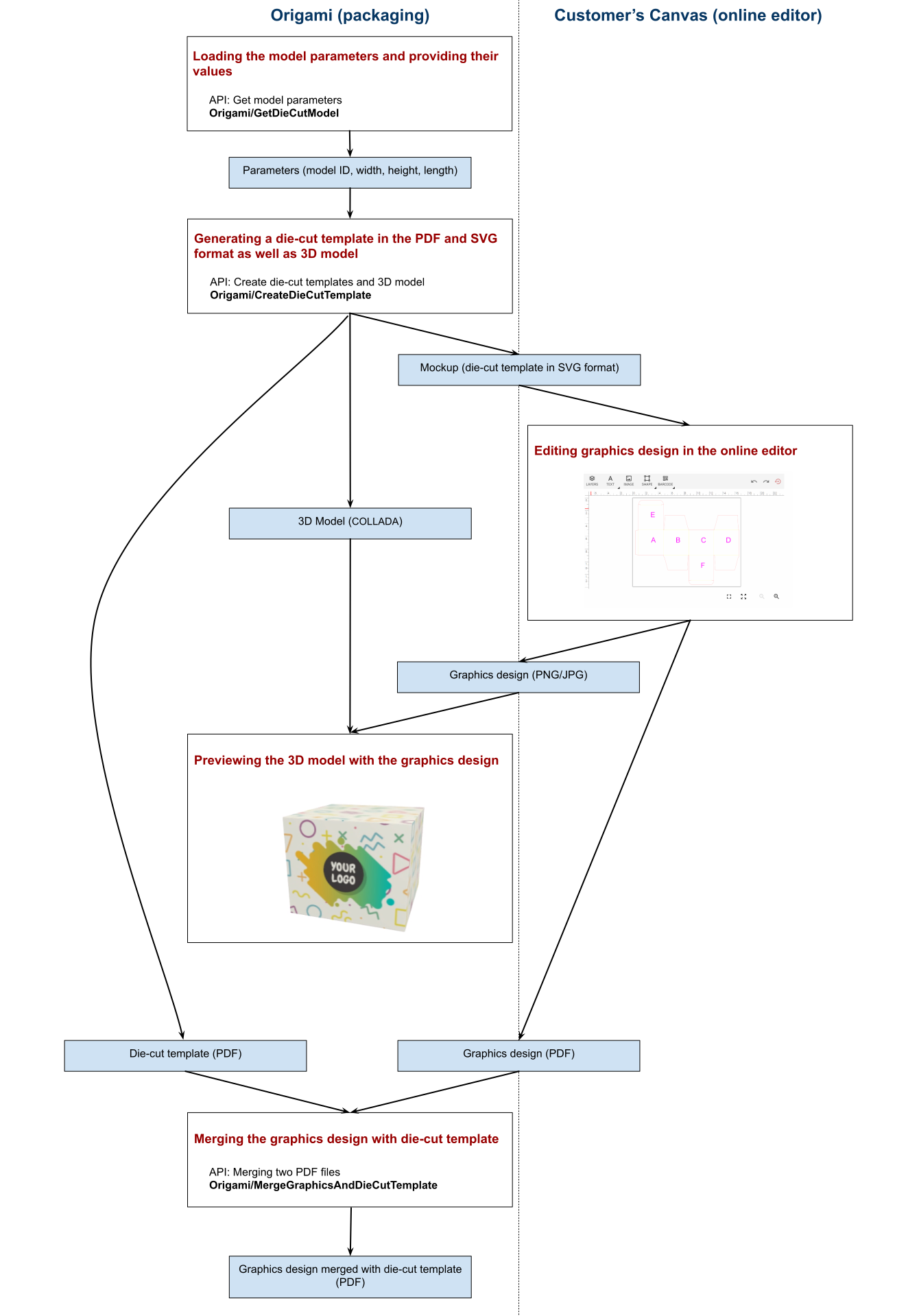
First, you need to select a package type and package size in Origami. Origami creates a die-cut template based on these parameters. Then, Origami suggests selecting a mockup allowing you to see what the packaging looks like after printing or to display additional information that helps in the design process. After that, Origami opens Customer's Canvas so that you can create a design for the die-cut template. Finally, Origami shows a 3D preview of the personalized packaging and renders hi-res outputs. To move from one step to another, you click the Next button in the Origami application.
This solution uses the following graphics formats:
- Hi-res output files are rendered in the PDF format (die-cut templates, graphic design, and the resulting print file).
- Mockups of die-cut templates are passed to the Customer's Canvas editor in SVG.
- 3D models are generated in the COLLADA format.
- Preview images are in PNG or JPG.
In This Section
Getting Started with the Packaging Application
Configuring the Packaging Application
Origami Web API