- Introduction
- What's New?
- Features
- Upgrading the Design Editor
- Breaking Changes in 6.0
- Getting Started
- Integration with E-commerce
- Integration with Remote Asset Sources
- Printable Files and Proof Images
- Configuring Products
- Creating Product Templates
- User Interface
- Configuration Files
- APIs
- Add-ons
- System Requirements
- Troubleshooting
- Migrating Your Applications
- Licensing
- Copyright Notices
Quick Start
Applies to: Customer's Canvas On-Premises; Preflight Tool 1.15.3, 1.8.4-1.23.8 (may differ) · Archived documentation
Working with the Preflight Tool
After you have installed the Preflight Tool, you can start working with this tool:
- Upload a file.
- Validate the file.
- If the file is invalid, upload another file or fix the found errors.
- Render print-ready files.
- Get links to print files.
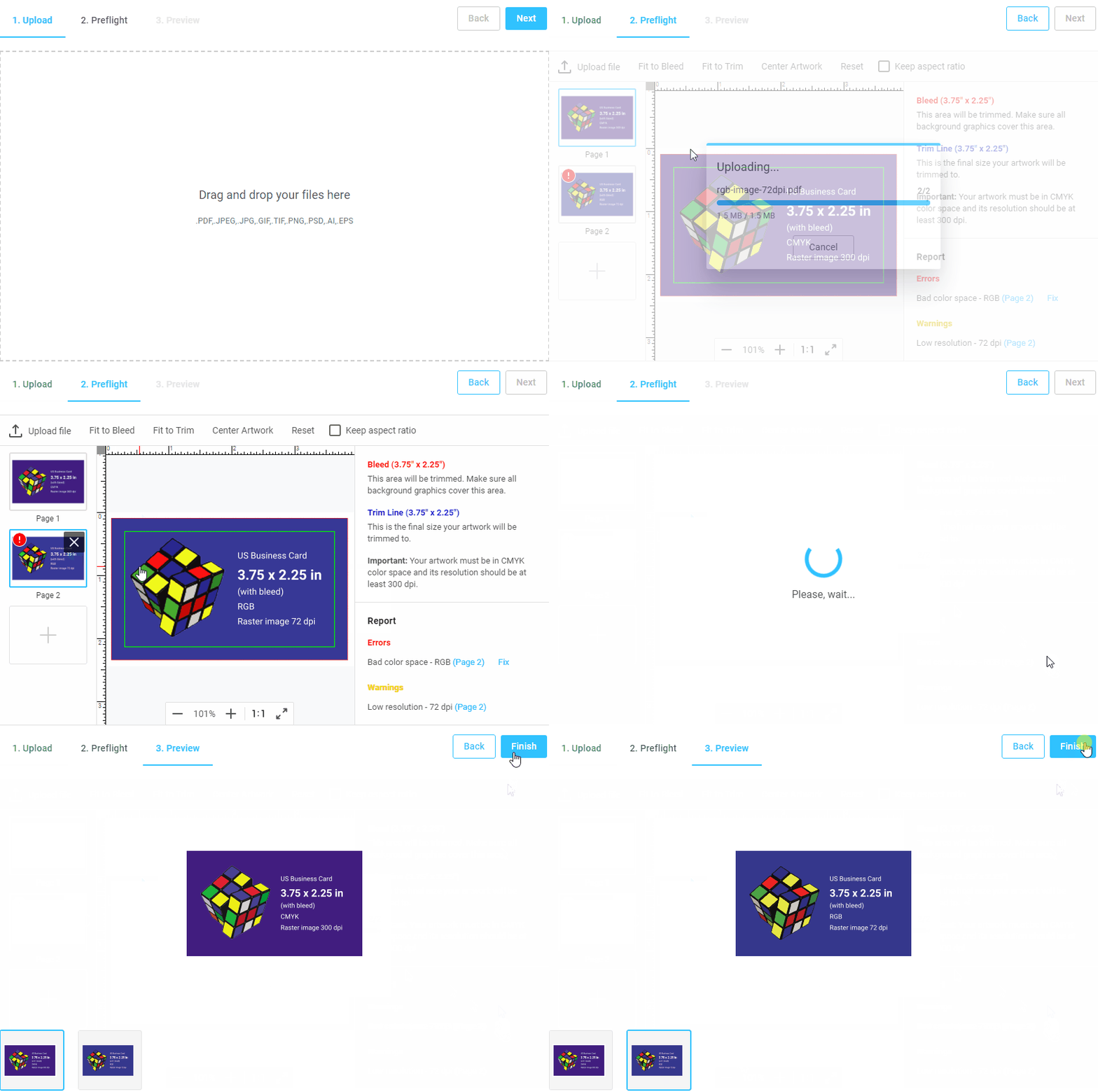
Configuring the Preflight Tool
First, you must specify a container for this tool.
<main class="main">
  <div class="editor-parent" id="editor-parent"></div>
</main>
Then, you need to configure this tool. For example, you can load the default configuration from the config.json file.
import moduleLoader from "./ui-framework/4.23.15/moduleLoader.js";
const config = await moduleLoader.loadJson("./config.json");
When you open this file, it may look as follows:
{
    "showSteps": true,
    "widgets": [
        {
            "name": "preflight",
            "type": "preflight",
            "params": {
                "config": {
                    "language": "en",
                    "backendUrl": "",
                    "startFromUploader": true,
                ...
            }
        }
    ],
    "steps": [
        {
            ...
        }
    ]
}
In the Preflight Tool FAQ topic, you can learn how to change the configuration for the most frequent use-case scenarios. If you have deployed the front end to a separate server, you must specify a back-end URL in the backendUrl parameter, for example:
// The address of your preflight server.
config.vars.backendUrl = "https://pt.example.com";
After that, you can load the editor and e-commerce driver.
// Load modules.
const driverImportData = await moduleLoader.dynamicImport("ecommerceDriver", "./ui-framework/4.23.15/drivers/default-driver.js");
const editorImportData = await moduleLoader.dynamicImportDefault("editor", "./ui-framework/4.23.15/editor.js");

// Get the editor and driver instances.
const editor = editorImportData.editor;
const driver = driverImportData.ecommerceDriver;
Then, initialize the driver and display the editor in the container.
const ecommerce = await driver.init(product, editor, config, settings, null, quantity, user);
ecommerce.products.current.renderEditor(document.getElementById("editor-parent"));
To retrieve URLs that link to print files, you must subscribe to the onSubmitted event, which will be called when the user finishes editing.
ecommerce.cart.onSubmitted.subscribe(data => {
    alert('Open console to see URLs to the preview images and print files');
    data.lineItems.forEach(function(order) {
        console.log("Print files: ", order.downloadUrls);
        console.log("Previews: ", order.images);
    });
});