
Importing SKU
In this article, you will learn how to fill the SKU fields and select the Available checkbox for your product variants via a CSV file. This CSV file allows you to fill these values at the same time.
To read more about product variants, SKU, and the Available checkbox, see the Product Variants article.
Let's create a CSV file for your product.
Exporting a workbook
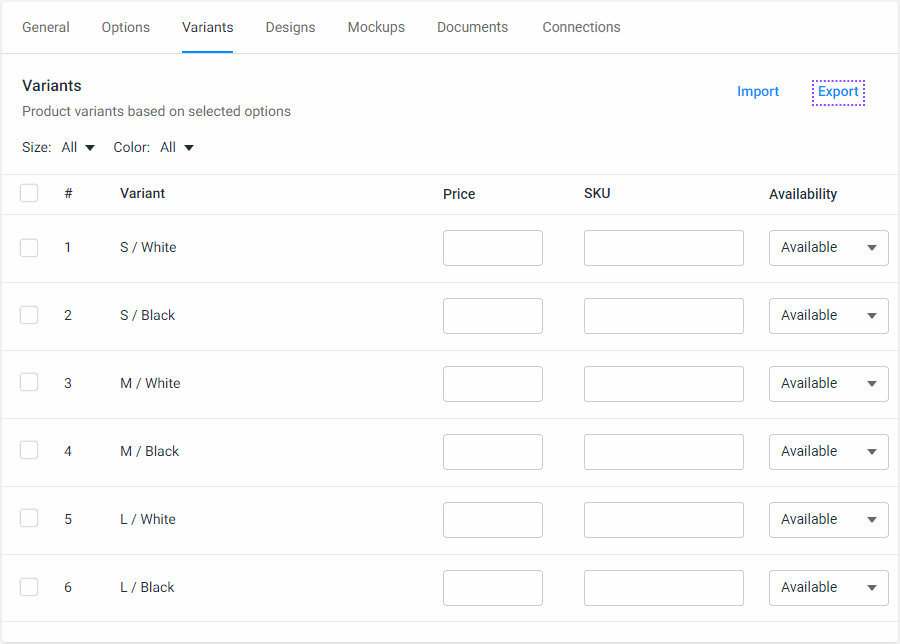
You can download a CSV file with filled columns to your PC. To do so, go to the Variants tab in your product and click Export. A CSV file will be downloaded.
Filling a workbook
In this CSV file, you can see the following columns. Let's consider their purpose.

| Column | Name | Description | Type | Example |
|---|---|---|---|---|
| 1 | # | Mandatory. A product variant index. | number | 5 |
| 2 | Value | Mandatory. A product variant. | string | S/White |
| 3 | SKU | Optional. An SKU value. | string | t-sh-1 |
| 4 | Available | Optional. This value defines availability of a product variant in a storefront. By default, False. | boolean | yes, no, true, false, 1, 0 |
The # and Value cells and all the names of the columns must stay the same. Otherwise, Customer's Canvas doesn't recognize such a workbook correctly.
Deleting product variants
You may delete the random rows that you don't want to change.
For example, the following workbook will be imported successfully.

A CSV file with empty rows won't be imported.
Importing a workbook
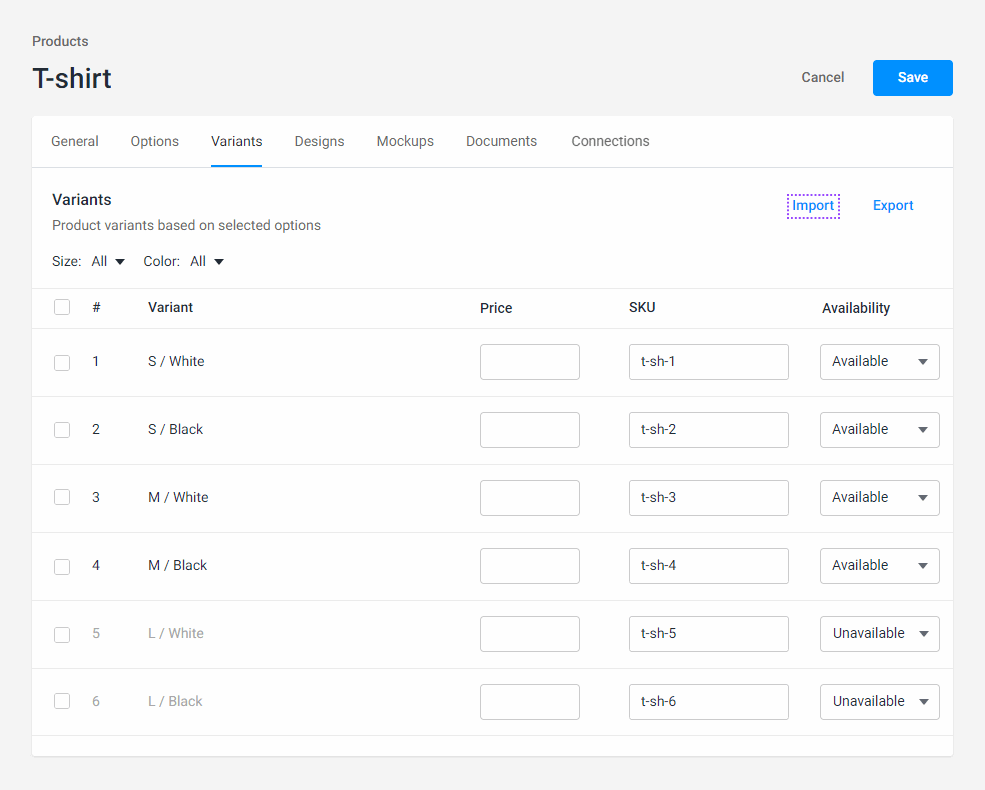
To import a CSV file, go to your product, select the Variants tab, and click Import. Select your CSV file and upload the file to your product.
This is how the result will look.