- Introduction
- What's New?
- Features
- Upgrading the Design Editor
- Breaking Changes in 6.0
- Getting Started
- Integration with E-commerce
- Integration with Remote Asset Sources
- Printable Files and Proof Images
- Configuring Products
- Creating Product Templates
- User Interface
- Simple and Advanced Web-to-Print Editor Modes
- The Asset Manager
- The Image Editor
- Editing Text Elements
- Rich Text Editor
- Customizing the User Interface
- Customizing Widgets on a Per-page Basis
- Customizing the Toolbox
- Color Picker
- Defining Names of Design Elements
- Markings
- The Preflight Check
- Localization of Customer's Canvas
- The Product Loading Screen
- UI Themes
- Watermarks
- Configuration Files
- APIs
- Add-ons
- System Requirements
- Troubleshooting
- Migrating Your Applications
- Licensing
- Copyright Notices
Editing Text Elements
Applies to: Customer's Canvas On-Premises; Design Editor 6.15.0, 6.x (may differ) · Archived documentation
The Design Editor supports two text engines:
- The WYSIWYG text engine - allows your users to edit all text elements right on the canvas whether it is rich or plain formatted.
- The Classic text engine - allows your users to edit plain-formatted elements in pop-up boxes and rich-formatted text in the Rich text editor.
Setting up Text Engines
To activate one of the text engines, you can use the LegacyTextEngineEnabled parameter in the Aurigma.DesignAtoms.config file. By default, this parameter is false and the WYSIWYG text engine is active. If true, the Design Editor uses the Classic text engine to edit text.
If you need to enable the Input method editor (IME) in the WYSIWYG mode, you can set canvas.textEditor to "html" in clientConfig.json.
WYSIWYG Text Engine
To change the content of text elements, you can use the Object Inspector or do it right on the canvas. To change the text style, you can use the Top Toolbar.
Click a text element once to change the appearance of the entire element, for example, its border, opacity, or z-order.
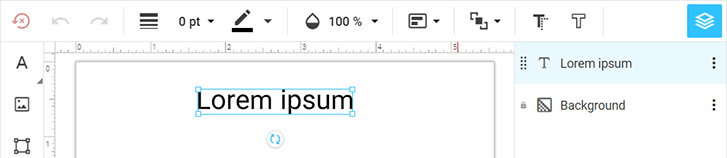
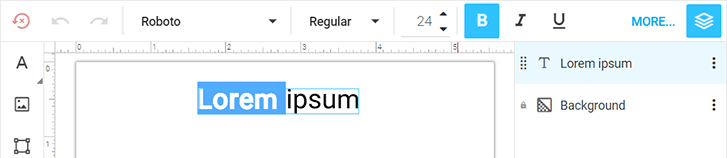
When you double-click the text element, controls for changing the text style appear in the Top Toolbar.
Note that some features are not supported in the current implementation of the WYSIWYG text engine, for example:
- Text shadow
- Auto-scaled text
- Vertical orientation
- Curved text
- Arched text
- Numbered and bulleted lists
- Character count and line count
If a text element has one or more of these features, then the Classic text engine runs and uses pop-up boxes or modal windows to edit text despite the value of LegacyTextEngineEnabled.
Classic Text Engine
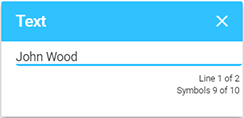
This text engine uses pop-up boxes to edit text elements with plain formatting and the Rich text editor to change the content and style of rich-formatted text.
Click a text element once and change the content of the plain text element in either a pop-up box or the Object Inspector. To change the text style, you can use the Top Toolbar.
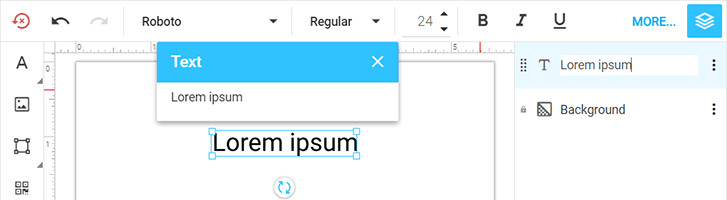
Pop-up boxes also appear when a limit on the number of characters was defined, even when using the WYSIWYG text engine.
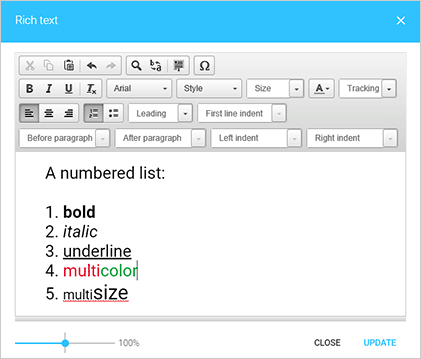
To change rich-formatted text, double-click this element. As a result, the Rich text editor appears.