- Introduction
- What's New?
- Features
- Upgrading the Design Editor
- Breaking Changes in 6.0
- Getting Started
- Integration with E-commerce
- Integration with Remote Asset Sources
- Printable Files and Proof Images
- Configuring Products
- Creating Product Templates
- Creating and Editing Templates in Customer's Canvas
- Elements for Creating Designs in Customer's Canvas
- Supported Markers
- Setting Markers Outside of Templates
- Defining Marker Shortcuts
- Text Elements in Customer's Canvas
- Image Placeholders
- Specifying the Image Source Folder
- Stroke and Shadow Effects in Customer's Canvas
- In-String Placeholders and Text Validation
- Text Wrapping in Customer's Canvas
- Barcode Placeholders
- Copyfitting
- Restricting Editing Designs to Certain Regions
- Product Themes
- Product Layouts
- Group Elements in Customer's Canvas
- Photoshop Templates
- Overview of Creating Templates in Photoshop
- Non-rectangular Image Placeholders
- Using Smart Objects in PSD Templates
- Placeholders with Frames
- Point and Paragraph Text
- Stroke and Shadow Text Effects
- Curved Text
- Multi-Column Text
- Typographic Designs
- Setting up Fields with Predefined Values
- Text Wrapping
- 3D Preview Mockups
- Sample PSD Files
- InDesign Templates
- User Interface
- Configuration Files
- APIs
- Add-ons
- System Requirements
- Troubleshooting
- Migrating Your Applications
- Licensing
- Copyright Notices
Point and Paragraph Text
Applies to: Customer's Canvas On-Premises; Design Editor 6.15.0, 6.x (may differ) · Archived documentation
Depending on your task, you can choose one of the two types of text layers available in Photoshop: point or paragraph text. Customer's Canvas can load both of them either vertically or horizontally-oriented (however, users cannot change the orientation that was set in the PSD template). Loaded text layers are placed on the canvas and are available for a user to edit them.
In some cases, scaled text may look blurred in Customer's Canvas, unlike the same string with the same font settings in Adobe Photoshop. To prevent such problems, do not apply the scale transform to text layers in your PSD templates. Increase the font size instead.
Point Text
Any point text area should be uniformly formatted to be loaded correctly in Customer's Canvas. If there are different font styles applied to a layer of that type, the first style is applied to the entire text and the other ones are ignored.
To create a point text layer in Photoshop:
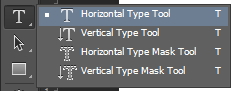
- On the Tools panel, click Type Tool, and then click Horizontal Type Tool or Vertical Type Tool.
- Click where you want to place a text, and enter some text. To begin a new line, press enter.

- Click Done when you are finished.

You can convert point text to paragraph text. To perform this, right-click a point text layer, and then click Convert to Paragraph Text.
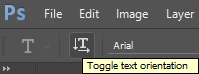
To toggle between horizontal and vertical orientation, in the Options Bar, click Toggle text orientation.
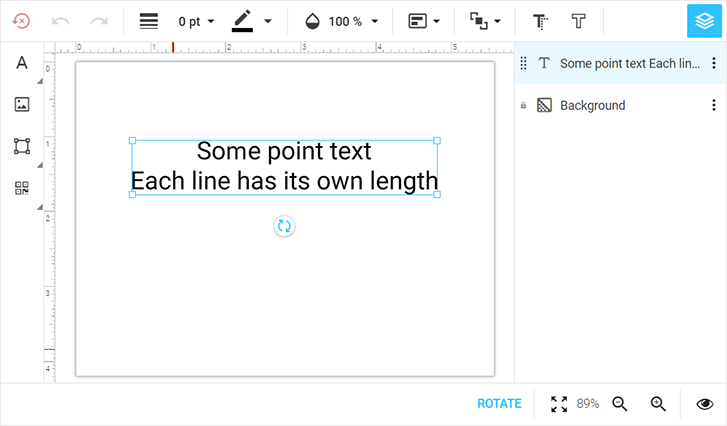
The following screenshot shows the previously created text loaded into the editor.
Paragraph Text
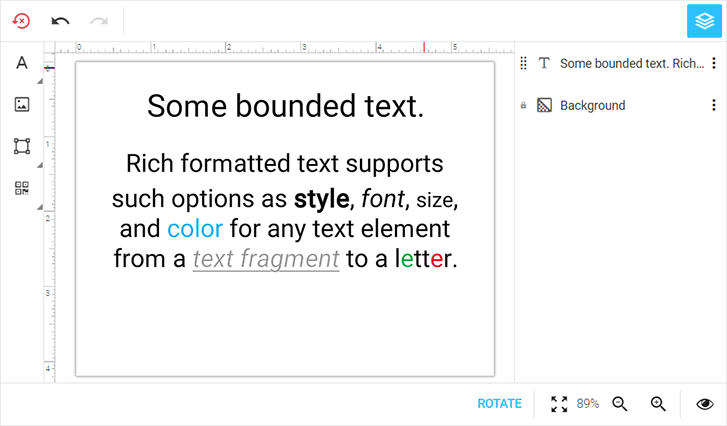
Paragraph text, unlike point text, has bounds. Customer's Canvas loads paragraph text as either rich formatted or plain bounded text. Rich formatted text allows multiple font styles in a single layer along with advanced paragraph formatting whereas plain bounded text has one style for a layer. By default, the editor handles paragraph text as rich formatted text.
To create a paragraph text layer in Photoshop:
- On the Tools panel, click Type Tool, and then click Horizontal Type Tool or Vertical Type Tool.
- Drag to create a bounding rectangle, then enter some text. To start a new paragraph, press Enter.
- Click Done when you are finished.
You can convert paragraph text to point text. To perform this, right-click a paragraph text layer, and then click Convert to Point Text. In the same way, you can convert point text to paragraph text.
To toggle between horizontal and vertical orientation, in the Options Bar, click Toggle text orientation.
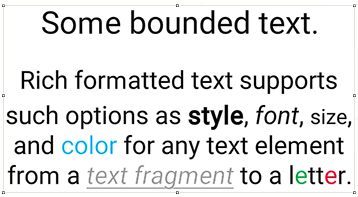
The following screenshot shows the previously created text loaded into the editor as rich formatted text.
Customer's Canvas supports text wrapping, which allows for inserting an image into a text area in PSD templates. For more information, see the Text Wrapping topic.