- Introduction
- What's New?
- Features
- Upgrading the Design Editor
- Breaking Changes in 6.0
- Getting Started
- Integration with E-commerce
- Integration with Remote Asset Sources
- Printable Files and Proof Images
- Configuring Products
- Creating Product Templates
- Creating and Editing Templates in Customer's Canvas
- Elements for Creating Designs in Customer's Canvas
- Supported Markers
- Setting Markers Outside of Templates
- Defining Marker Shortcuts
- Text Elements in Customer's Canvas
- Image Placeholders
- Specifying the Image Source Folder
- Stroke and Shadow Effects in Customer's Canvas
- In-String Placeholders and Text Validation
- Text Wrapping in Customer's Canvas
- Barcode Placeholders
- Copyfitting
- Restricting Editing Designs to Certain Regions
- Product Themes
- Product Layouts
- Group Elements in Customer's Canvas
- Photoshop Templates
- Overview of Creating Templates in Photoshop
- Non-rectangular Image Placeholders
- Using Smart Objects in PSD Templates
- Placeholders with Frames
- Point and Paragraph Text
- Stroke and Shadow Text Effects
- Curved Text
- Multi-Column Text
- Typographic Designs
- Setting up Fields with Predefined Values
- Text Wrapping
- 3D Preview Mockups
- Sample PSD Files
- InDesign Templates
- User Interface
- Configuration Files
- APIs
- Add-ons
- System Requirements
- Troubleshooting
- Migrating Your Applications
- Licensing
- Copyright Notices
You’re viewing outdated documentation. View the latest Customer’s Canvas On-Premises documentation.
Stroke and Shadow Text Effects
Applies to: Customer's Canvas On-Premises; Design Editor 6.15.0, 6.x (may differ) · Archived documentation
It is quite easy to create these effects in Photoshop by using the Add a layer style command:  . Let us go through the process of creating a PSD template with stroke and shadow text effects.
- Create a new template in Photoshop.
- On the Tools panel, click Type Tool.
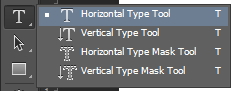
- Click where you want to place a text, and enter some text. Click Done in the Options panel when you are finished.

- On the Layers tab, click Add a layer style, and then click Stroke.
- In the Layer Style dialog box, click Ok to set default stroke settings.
- Repeat steps 2 - 5 for a shadow effect.
-
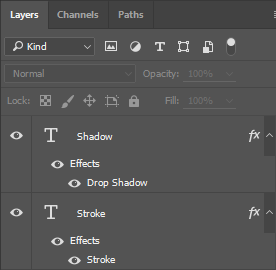
Now, the Layers tab looks as follows:
-
Save the template and open it in Customer's Canvas.
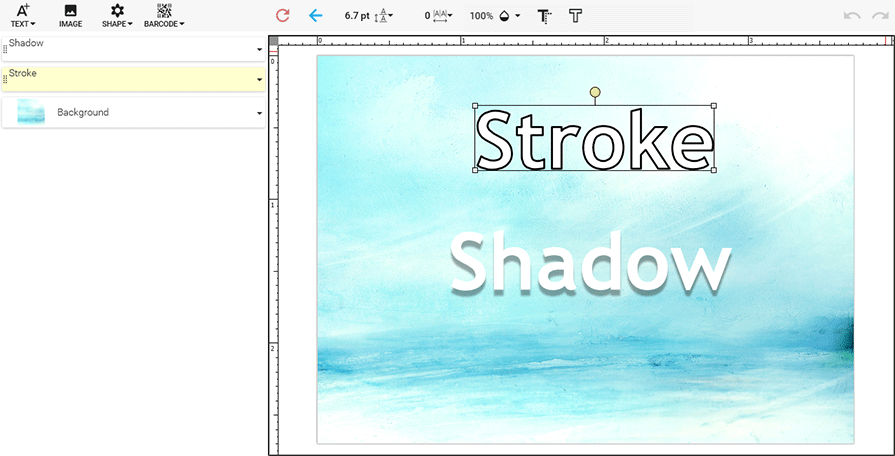
In the editor, you can edit these effects by using the Stroke and Shadow buttons. For more details, you can refer to the Stroke and Shadow Effects in Customer's Canvas topic.
Note
Customer's Canvas shows the Inside and Outside strokes in the Center position.
Unlike Photoshop, Customer's Canvas uses the angle of the shadow rather than the angle of the light source.