- Introduction
- What's New?
- Features
- Upgrading the Design Editor
- Breaking Changes in 6.0
- Getting Started
- Integration with E-commerce
- Integration with Remote Asset Sources
- Printable Files and Proof Images
- Configuring Products
- Creating Product Templates
- Creating and Editing Templates in Customer's Canvas
- Elements for Creating Designs in Customer's Canvas
- Supported Markers
- Setting Markers Outside of Templates
- Defining Marker Shortcuts
- Text Elements in Customer's Canvas
- Image Placeholders
- Specifying the Image Source Folder
- Stroke and Shadow Effects in Customer's Canvas
- In-String Placeholders and Text Validation
- Text Wrapping in Customer's Canvas
- Barcode Placeholders
- Copyfitting
- Restricting Editing Designs to Certain Regions
- Product Themes
- Product Layouts
- Group Elements in Customer's Canvas
- Photoshop Templates
- Overview of Creating Templates in Photoshop
- Non-rectangular Image Placeholders
- Using Smart Objects in PSD Templates
- Placeholders with Frames
- Point and Paragraph Text
- Stroke and Shadow Text Effects
- Curved Text
- Multi-Column Text
- Typographic Designs
- Setting up Fields with Predefined Values
- Text Wrapping
- 3D Preview Mockups
- Sample PSD Files
- InDesign Templates
- User Interface
- Configuration Files
- APIs
- Add-ons
- System Requirements
- Troubleshooting
- Migrating Your Applications
- Licensing
- Copyright Notices
Multi-Column Text
Applies to: Customer's Canvas On-Premises; Design Editor 6.15.0, 6.x (may differ) · Archived documentation
Newspapers, magazines, and some books may use multi-column layouts. Although Photoshop does not support columns, Customer's Canvas does. Customer's Canvas can load and render multi-column text blocks, define the number of columns in a text layer, or provide a user with the ability to change it.
To add multi-column text to a template, create a paragraph text layer and insert the <TCC_x> marker into the layer name, where x stands for the number of columns to divide the text into. For example, the <TCC_2> marker divides the text into two columns. It should not confuse you that columns are not displayed in Photoshop - it does not support columns.
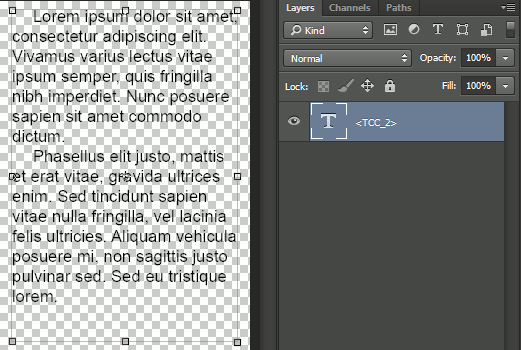
When the template is loaded into the editor, the columns are displayed on the canvas and the number of columns can be changed. Columns are automatically resized when the width and/or height of the text block is changed. The size of any column cannot be changed manually.
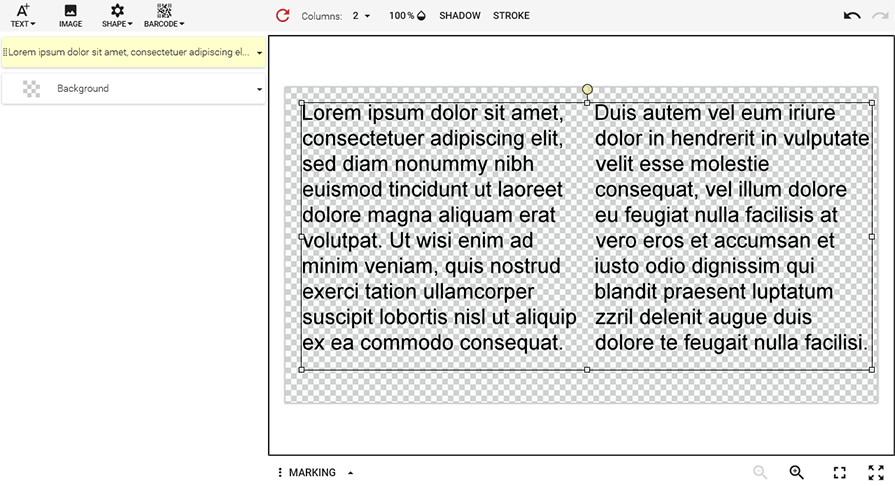
To prevent a user from changing the number of columns, use the <TACCC_f> marker. If you want to create a standard (rich) text layer, but provide the user with the ability to convert it to multi-column text, use the <TCC_1> marker. Also, when a user adds a new rich formatted text layer to a product, the layer has one column by default.
The gutter (the gap between columns) has a fixed size of 10pt.