

Gallery
The gallery widget shows a set of images and allows you to select one of them.
{
    "name": "my-gallery",
    "type": "gallery",
    "params": {...}
}
Images
You can add images by specifying their URLs.
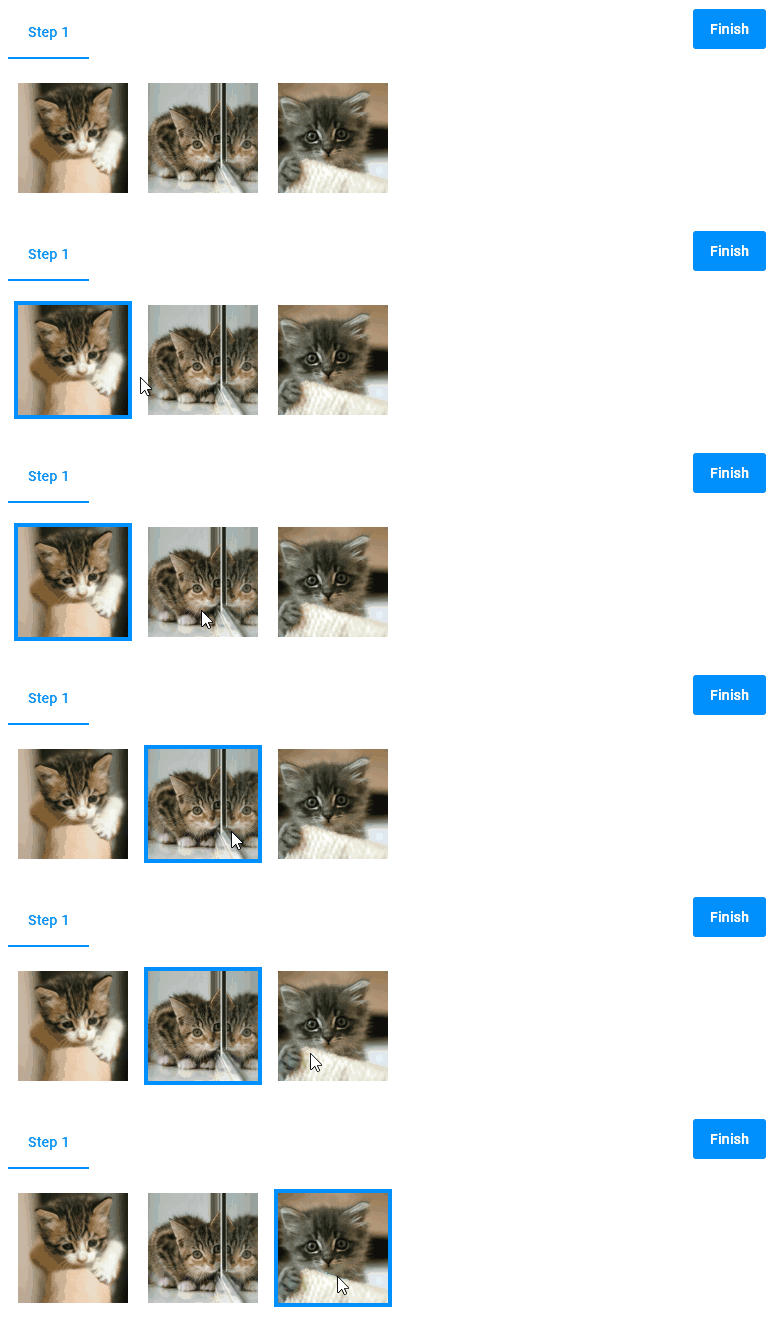
To do so, in the items array, define objects with the name and previewUrl properties. Such an object will add an image to the widget.
{
  "type": "gallery",
  "name": "my-gallery",
  "params": {
    "items": [
      {
        "name": "kitten-1",
        "previewUrl": "https://placekitten.com/300/300"
      },
      {
        "name": "kitten-2",
        "previewUrl": "https://placekitten.com/310/310"
      },
      {
        "name": "kitten-3",
        "previewUrl": "https://placekitten.com/330/330"
      }
    ]
  }
}
The gallery widget allows you to add images using the REST API. In this case, you can will need the ajax widget.
{
  "widgets": [
    {
      "type": "ajax",
      "name": "bg-request",
      "params": {
        "url": "http://example.com/api/backgrounds/kitten",
        "method": "GET"
      }
    },
    {
      "type": "gallery",
      "name": "my-gallery",
      "params": {
        "prompt": "Choose a background",
        "items": "{{$['bg-request'].response}}"
      }
    }
  ]
}
Title
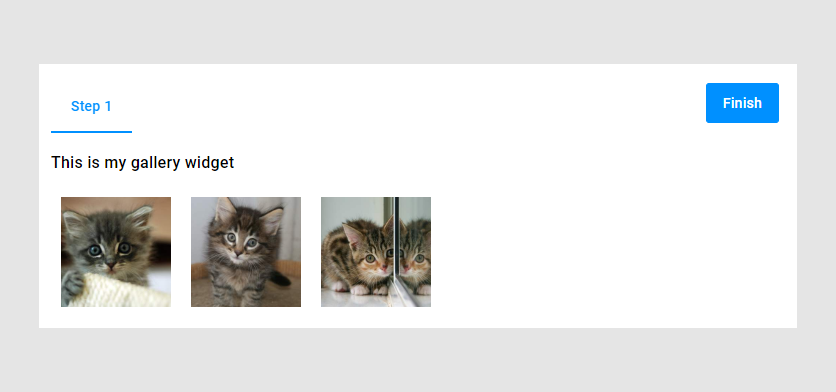
Let's add titles to images.
{
  "type": "gallery",
  "name": "my-gallery",
  "title": "This is my gallery widget",
  "params": {
    "items": [
      {
        "name": "kitten-1",
        "title": "Kitten 1",
        "previewUrl": "https://placekitten.com/300/300"
      },
      {
        "name": "kitten-2",
        "title": "Kitten 2",
        "previewUrl": "https://placekitten.com/310/310"
      },
      {
        "name": "kitten-3",
        "title": "Kitten 3",
        "previewUrl": "https://placekitten.com/330/330"
      }
    ]
  }
}
Show titles
You can show or hide image titles depending on the showTitles property.
{
  "type": "gallery",
  "name": "my-gallery",
  "title": "This is my gallery widget",
  "params": {
    "showTitle": false,
    "items": [
      {
        "name": "kitten-1",
        "title": "Kitten 1",
        "previewUrl": "https://placekitten.com/300/300"
      },
      {
        "name": "kitten-2",
        "title": "Kitten 2",
        "previewUrl": "https://placekitten.com/310/310"
      },
      {
        "name": "kitten-3",
        "title": "Kitten 3",
        "previewUrl": "https://placekitten.com/330/330"
      }
    ]
  }
}
Prompt
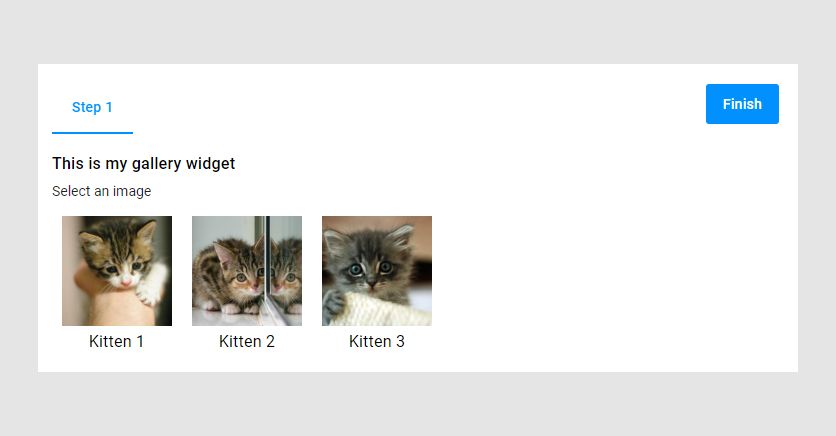
In prompt, you can explain what the user is supposed to do with this widget. This prompt appears under the widget title.
{
  "type": "gallery",
  "name": "my-gallery",
  "title": "This is my gallery widget",
  "prompt": "Select an image",
  "params": {
    "items": [
      {
        "name": "kitten-1",
        "title": "Kitten 1",
        "previewUrl": "https://placekitten.com/300/300"
      },
      {
        "name": "kitten-2",
        "title": "Kitten 2",
        "previewUrl": "https://placekitten.com/310/310"
      },
      {
        "name": "kitten-3",
        "title": "Kitten 3",
        "previewUrl": "https://placekitten.com/330/330"
      }
    ]
  }
}
Description
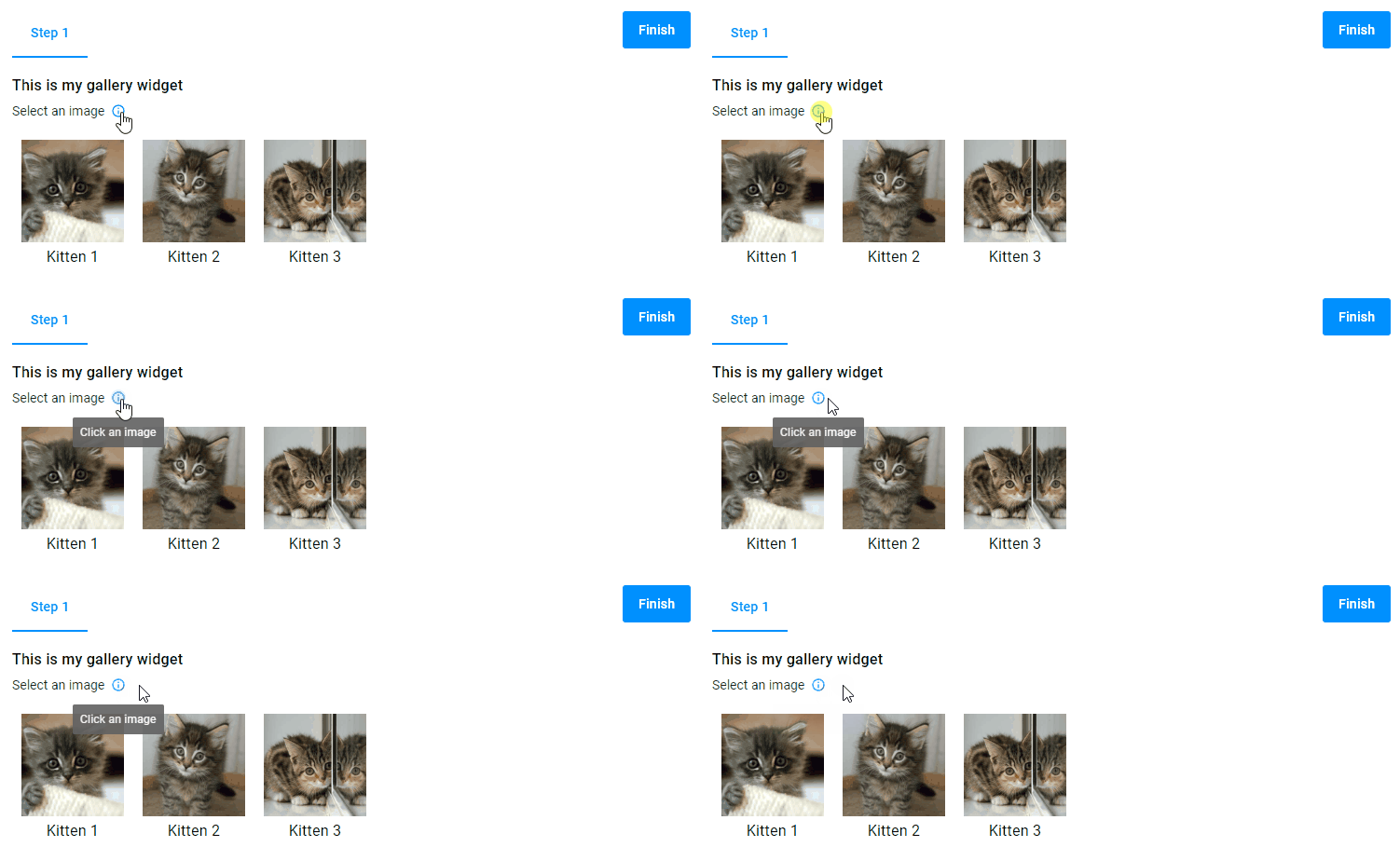
An additional description can be displayed as a tooltip. To see this description, click the i icon.
{
  "type": "gallery",
  "name": "my-gallery",
  "title": "This is my gallery widget",
  "prompt": "Select an image",
  "description": "Click an image",
  "params": {
    "items": [
      {
        "name": "kitten-1",
        "title": "Kitten 1",
        "previewUrl": "https://placekitten.com/300/300"
      },
      {
        "name": "kitten-2",
        "title": "Kitten 2",
        "previewUrl": "https://placekitten.com/310/310"
      },
      {
        "name": "kitten-3",
        "title": "Kitten 3",
        "previewUrl": "https://placekitten.com/330/330"
      }
    ]
  }
}
Force selection
The forceSelection property selects the first item when a page loads.
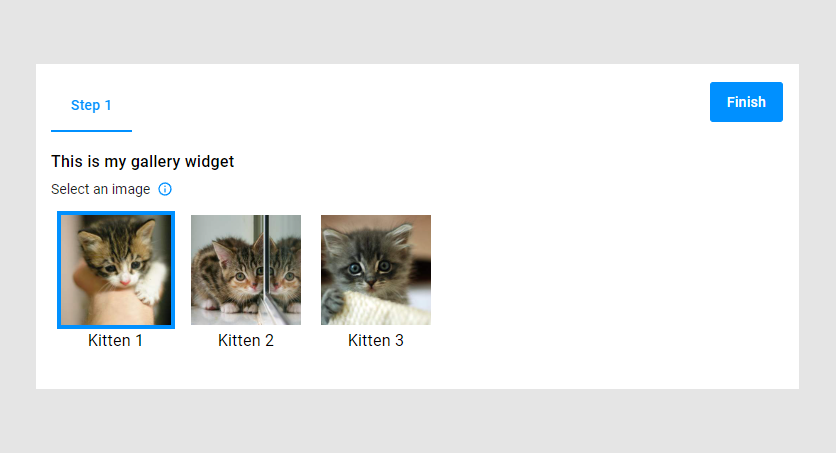
{
  "type": "gallery",
  "name": "my-gallery",
  "title": "This is my gallery widget",
  "prompt": "Select an image",
  "description": "Click an image",
  "params": {
    "forceSelection": true,
    "items": [
      {
        "name": "kitten-1",
        "title": "Kitten 1",
        "previewUrl": "https://placekitten.com/300/300"
      },
      {
        "name": "kitten-2",
        "title": "Kitten 2",
        "previewUrl": "https://placekitten.com/310/310"
      },
      {
        "name": "kitten-3",
        "title": "Kitten 3",
        "previewUrl": "https://placekitten.com/330/330"
      }
    ]
  }
}
Preselected item
When you force the initial selection, you can specify which image must be selected in the preselected property with an item name.
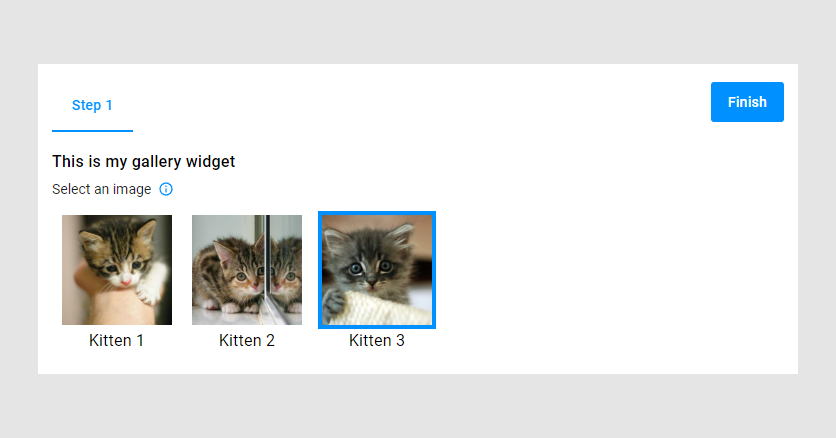
{
  "type": "gallery",
  "name": "my-gallery",
  "title": "This is my gallery widget",
  "prompt": "Select an image",
  "description": "Click an image",
  "params": {
    "preselected": "kitten-3",
    "items": [
      {
        "name": "kitten-1",
        "title": "Kitten 1",
        "previewUrl": "https://placekitten.com/300/300"
      },
      {
        "name": "kitten-2",
        "title": "Kitten 2",
        "previewUrl": "https://placekitten.com/310/310"
      },
      {
        "name": "kitten-3",
        "title": "Kitten 3",
        "previewUrl": "https://placekitten.com/330/330"
      }
    ]
  }
}
Images in vars
Instead of hardcoding images in a widget, you can define their links in the vars section. For more details about vars, refer to the Structure topic.
First, in the vars section, define the image URLs.
Then, in the items array, refer to them by using the each as dynamic expression.
{
  "vars": {
    "images": [
      "https://placekitten.com/300/300",
      "https://placekitten.com/310/310",
      "https://placekitten.com/320/320"
    ]
  },
  "widgets": [
    {
      "type": "gallery",
      "name": "my-gallery",
      "title": "Choose a picture",
      "params": {
        "items": {
          "{{#each vars.images as image}}": {
            "name": "{{image}}",
            "title": "{{`kitten${index+1}`}}",
            "previewUrl": "{{image}}"
          }
        }
      }
    }
  ]
}
| Name | Type | Description | Default value |
|---|---|---|---|
items | array of items | Defines a set of images. | empty array |
title | string | (Optional) Shows a title. | empty string |
showTitle | boolean | (Optional) Shows or hides image titles. | true |
prompt | string | (Optional) Shows a description under the title. | empty string |
description | string | (Optional) Shows an additional description in a tooltip. | empty string |
forceSelection | boolean | (Optional) Selects the first image when a page is loaded. | false |
preselected | string | (Optional) Defines the item to be selected if forceSelection is true. | empty string |
Items
| Name | Type | Description | Default value |
|---|---|---|---|
name | string | An identifier of an item. | empty string |
title | string | (Optional) Shows a title under an image. | empty string |
previewUrl | string | An image URL. | empty string |